The last 3 months have been interesting. One of our ticking time-bombs exploded and we’re working hard to rebuild. Let me explain…
As we explained in the video that launched this project, when we originally designed PocketBible we put a lot of intelligence about specific Bibles into the program itself. This was done so that PocketBible could handle differences in versification between Bibles. A simple example is 3 John 14-15. These are two separate verses in some Bibles and are combined into verse 14 in other Bibles. As a result, if you highlight 3 John 15 in a Bible that has that verse but are reading a Bible that does not have that verse, we apply the 3 John 15 highlight to 3 John 14 (if it isn’t already highlighted), not because it’s the last verse of the chapter and there isn’t a verse 15, but because, in a 14-verse version of 3 John, verse 14 contains the contents of verse 15 and therefore is verse 15 (and verse 14).
| 3 John 13-14 (King James Version) | 3 John 13-15 (New American Standard Bible) |
|---|---|
| 13I had many things to write, but I will not with ink and pen write unto thee: 14But I trust I shall shortly see thee, and we shall speak face to face. Peace be to thee. Our friends salute thee. Greet the friends by name. | 13I had many things to write to you, but I do not want to write to you with pen and ink; 14but I hope to see you shortly, and we will speak face to face. 15Peace be to you. The friends greet you. Greet the friends by name. |
Solving issues like this was originally done in the code. So there’d be a whole sequence of steps like, “If this Bible references is in 3 John and the verse number is 15 but the Bible you want to map it to has a version of 3 John that only has 14 verses, then set the verse number to 14.” This was fine when the number of these cases was relatively small. But as we added more and more Bibles, there turned out to be hundreds of these.
The solution was to describe all the mappings in a table containing the “from” book, chapter, and verse, and the “to” book, chapter, and verse for each weird situation. The data tables that describe this mapping are huge and complicated. There are between 1500 and 2000 of these “special cases” in PocketBible. And this is just one of the required data tables. There is another table that tell us which version of each book of the Bible is in each of the Bibles (so we can tell if a particular Bible has the version of 3 John with 14 or 15 verses, for example). Another table maps each of these different versions of the books of the Bible to their names. (So that we can tell that both versions of 3 John should be called “3 John”.) A variety of other data tables help us deal with these issues.
The problem with putting this information into PocketBible (whether directly in the code in a series of “if this then do this” statements or in tables that can be iterated and processed by code) is that anytime we release a new Bible with a new versification scheme for one or more of its books, we have to update every version of PocketBible. Currently that list would include PocketBible for iOS, Android, macOS, Windows Store, Windows Desktop, and the new Windows Version — six different apps would have to be modified. Three of those six share the code that contains these tables. That is, they all use the same code in the same language to process Bible references, and it is written in C++. So once we add a new Bible to the C++ code, the iOS, macOS, and Windows Desktop products are done. But the Android app is in Java, the Windows Store app is in C#, and the new Windows app is in JavaScript. So that means the same changes have to be made in 4 different languages, then 6 different apps have to be rebuilt.
Building the app for every platform is tedious, error-prone, and time-consuming. On top of that, over time it gets to where it can’t be done. We were still supporting PocketBible for Palm OS long after it got to where it was impractical to build a new version of the app. Ditto PocketBible for Windows CE and Pocket PC. And then there was PocketBible for webOS and Blackberry that were created by outside developers. In other words, this was just a bad design.
So in 2015 we decided to redesign our LBK files so that these tasks were not performed in the code, but were all described in tables that could be packaged with each Bible. That way, the app could look at each Bible as it was installed and if it contained a more recent version of these tables than what the app already knew about, it would update its tables with those contained in the LBK file. This would allow a new Bible completely unknown to PocketBible to be released and it would function as if PocketBible knew about it all along.
When we contacted the developer of the Windows Store app about these changes, he wasn’t excited about making them because of the time involved. And when we started digging into the old (old at that time; older still now) Windows Desktop code, we realized it would be all but impossible to update that app to include compatibility with these new Bibles. (Remember also that at this time it was unclear whether the Windows Desktop app was even going to continue to be used because supposedly the world was transitioning to the awful Modern User Interface paradigm of Windows 8. So it was unclear whether or not it would be worth the time to update it.)
We decided to go ahead with the new LBK Bible format anyway. It would just mean that new Bibles wouldn’t work on the Windows platform — at least not until the Windows Store version was updated. What we didn’t know at the time was that it never would be.
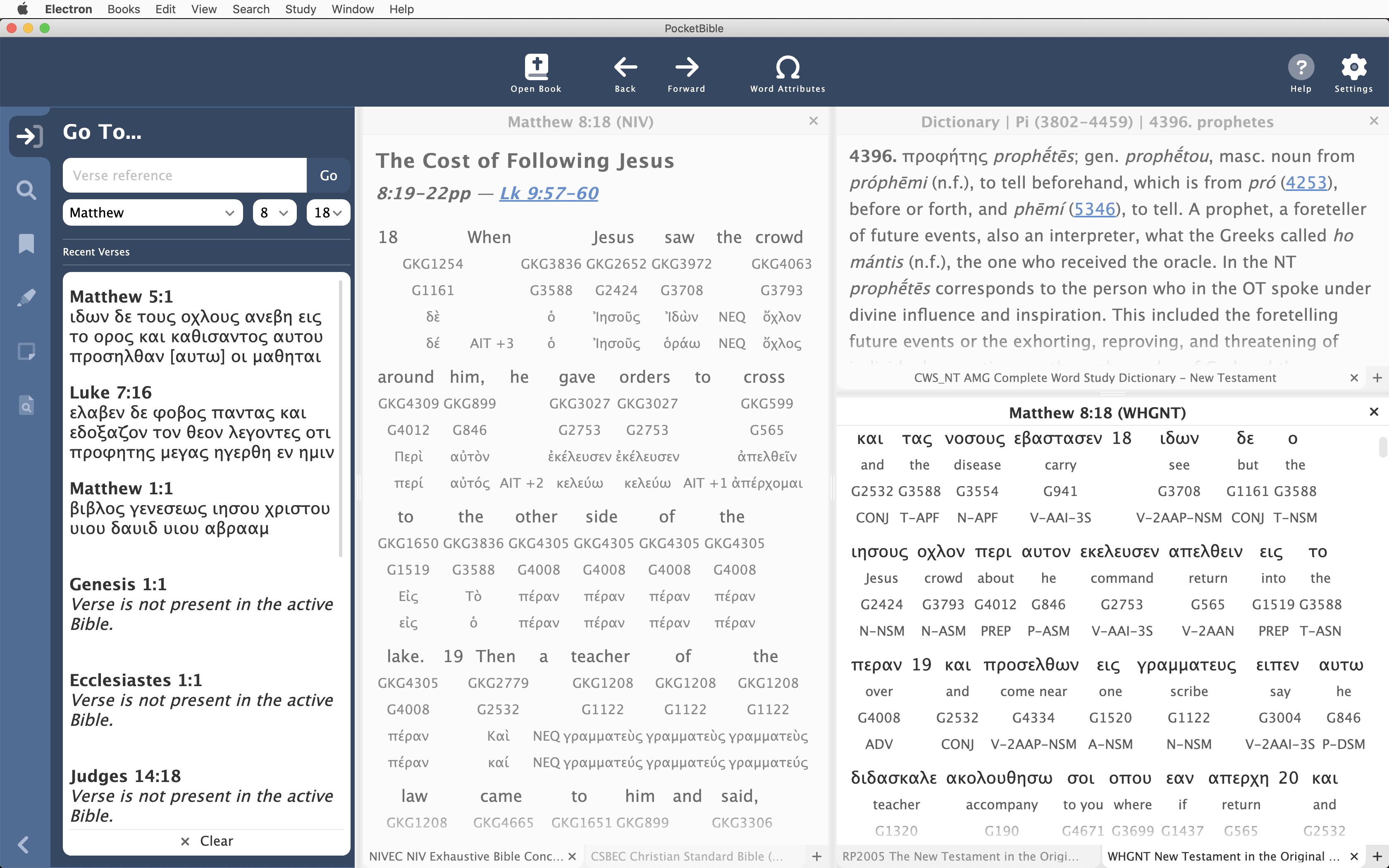
As you know, this became one of the primary motivations to re-write PocketBible for Windows. The new version already implements compatibility with the new LBK format for Bibles.
| Psalm 68:11-14 NASB | Psalm 68:12a-15 NAB |
|---|---|
| 11The Lord gives the command; The women who proclaim good news are a great army: 12“Kings of armies flee, they flee, And she who remains at home will divide the spoils!” 13When you lie down among the sheepfolds, You are like the wings of a dove covered with silver, And its pinions with glistening gold. 14When the Almighty scattered the kings there, It was snowing in Zalmon. | 12aThe Lord announced the news of victory: 13a“The kings and their armies are in desperate flight. 12bAll you people so numerous, 14awill you stay by the sheepfolds? 13bEvery household will share the booty, 14bperhaps a dove sheathed with silver, 14cits wings covered with yellow gold.” 15When the Almighty routed the kings there, the spoils were scattered like snow on Zalmon. |
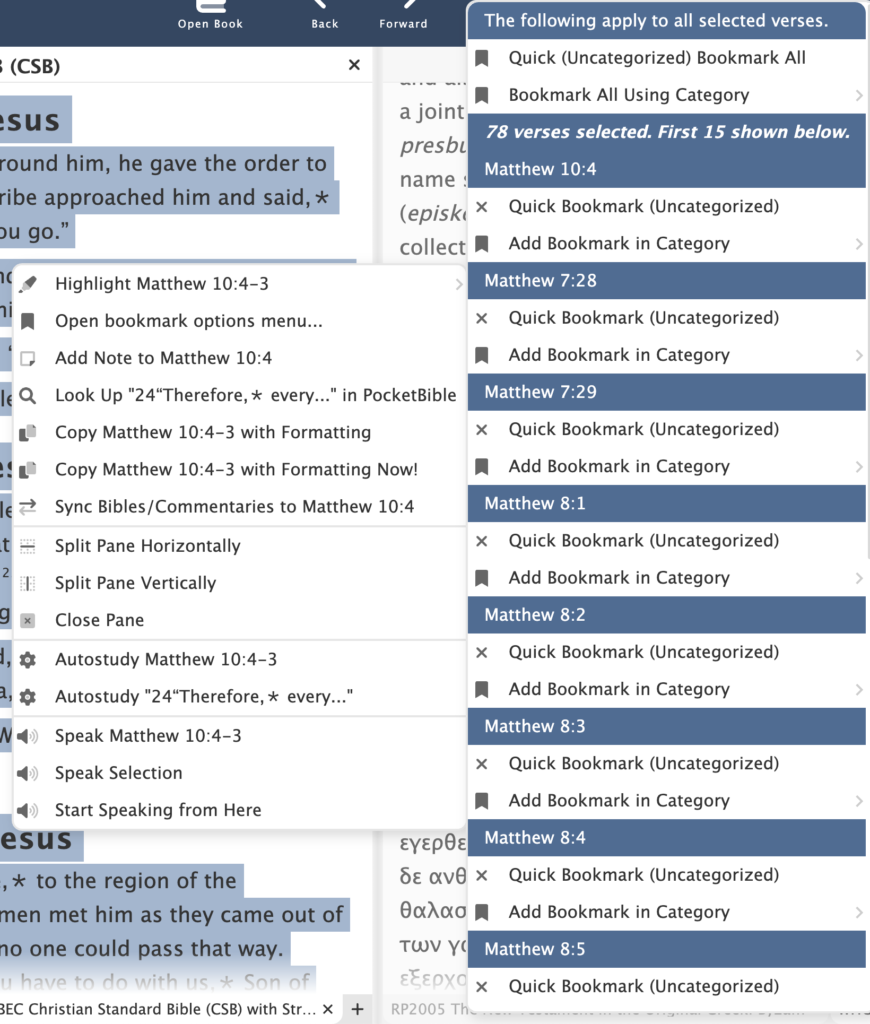
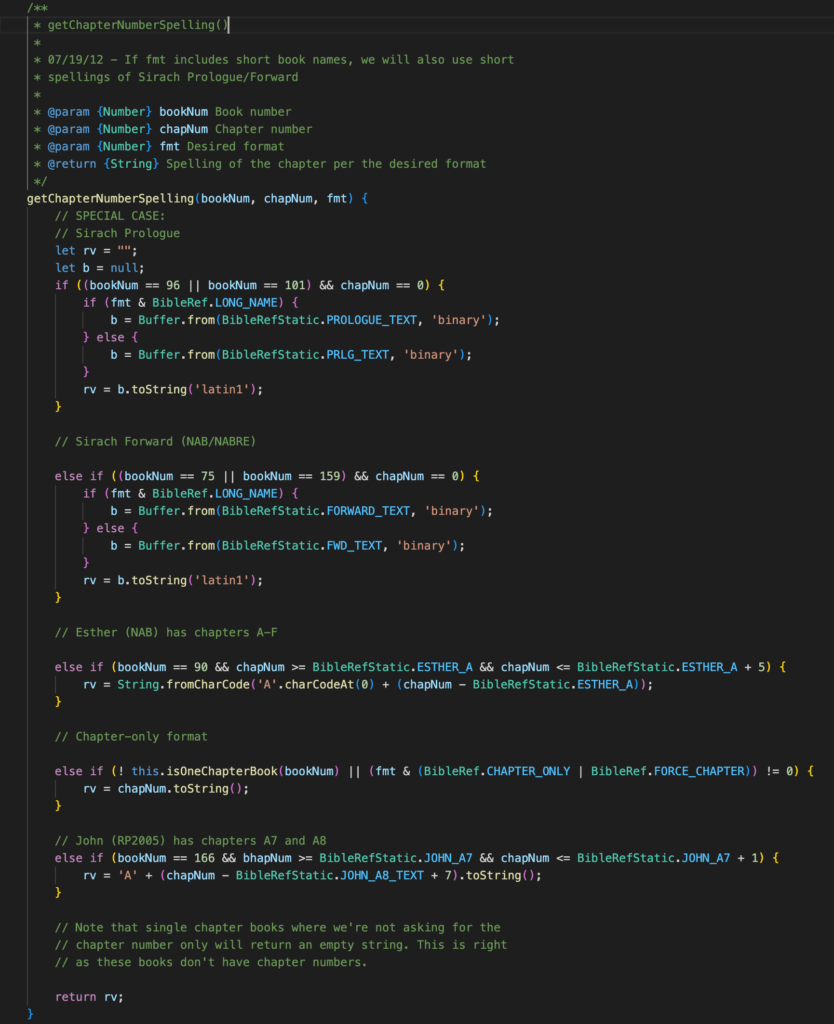
 What we didn’t realize is that we had been lying to ourselves about no longer needing to update the code in PocketBible when a new Bible was released. There were conditions under which that lie was definitely true. But there were still small, special cases scattered throughout the code and not handled by a data table in the LBK file. For example, some Bibles contain verses with suffixes, like Isaiah 14:25b and Psalm 68:12a, 12b, 13a, 13b, 14a, 14b, and 14c. In the apocrypha, Sirach has a chapter called “Prologue” that is called “Forward” in some Bibles. Esther has chapters A-F in addition to its numbered chapters. While we could map all of these verses to their corresponding verses in other Bibles using the tables that we had moved into the LBK file, when we wanted to print out the Bible reference “Psalm 68:12b” there was a piece of code that got called to look at the stored verse number (which was 14 in this case — 12a was 12, 13a was 13, and 12b was 14) and return the correct “spelling” of that verse number (the 14th verse in Psalm 68 is “12b”).
This all came to the boiling point with the pending release of several new and updated Bibles. While updating the data tables that would make these new Bibles work on any version of PocketBible including the new Windows app, I realized I would also have to deal with some of the special cases in the code itself. And that meant doing the very thing that we had told ourselves we’d never need to do again — simultaneously updating the iOS, Android, macOS, and new Windows versions of PocketBible.
The only reasonable plan forward is to finish what we started back in 2015. So for the last couple of months I’ve been working in both our BookBuilder app and the macOS version of PocketBible (since its code is easiest to work with while working on BookBuilder) to move special cases out of the code and into data tables, then adding code to write those data tables into the LBK file, then adding code to read them into PocketBible when necessary. For each special case in the code, the code has to be rewritten to use the data tables instead. All of this has to be tested and will have to be tested on each platform into which we roll this new code.
What this means is that once I finish doing this in the macOS version, I need to do the same in the iOS version (should be quick since it’s the same code that is used in both the macOS and iOS versions), then re-write it in Java for Android, then release all those new versions to their respective stores, then update the new Windows version (re-write for a third time, this time in JavaScript) and test it there.
So that’s what I’ve been doing so far this year. How’s your 2023 going?
Meanwhile…
In the meantime, we’re moving on to Advanced Feature Set features in the Windows version.
The ability to create saved layouts has been implemented similar to how it exists in the macOS version. You can create a new layout, give it a name, and it will appear as a tab across the top of the screen. These tabs can be dragged around to re-order them, and they can be renamed. This will get awkward if you have more than a handful of layouts, but should work for most people who would like to dedicate a screen layout to devotional reading and another to study.
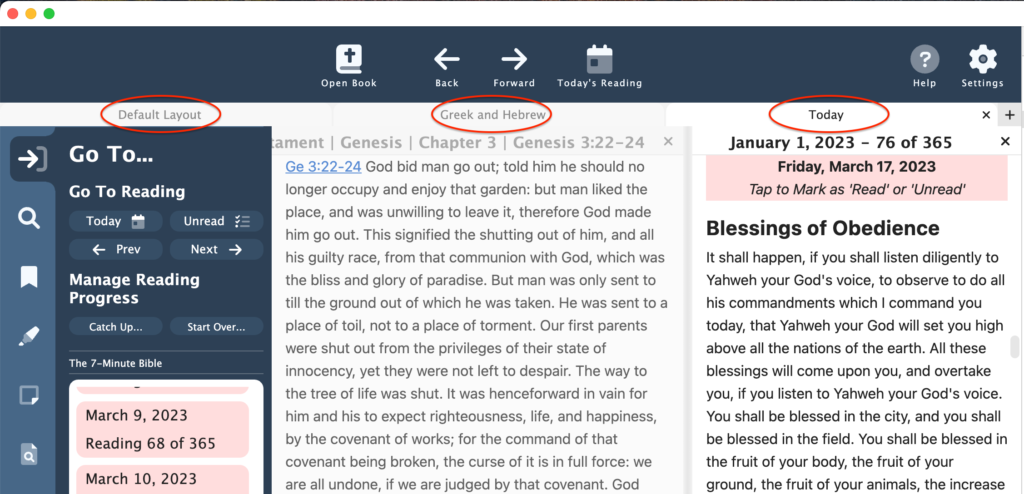
Related to the above, we’ve added a toolbar button labelled “Today” that will activate a devotional and take you to today’s reading. If you have a layout named “Today”, this button will activate your layout named “Today” and show today’s reading in the active devotional. This is not unlike the same feature in the macOS version of PocketBible.
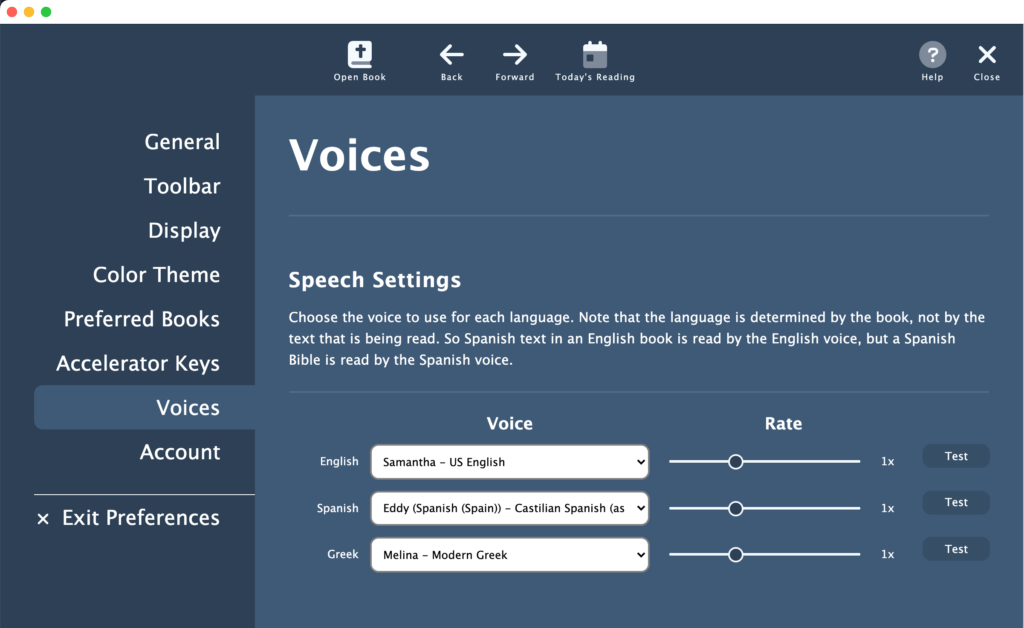
Quite a bit of progress has been made on implementing a “Speak” feature. The app uses the synthesized speech voices built into Windows to read to you. You can read the selected text, the selected verse(s), or start reading at the top of the page and continue until you tell it to stop. Toolbar buttons have been added to control this feature. You’ll be able to choose your voice and the rate at which it is speaking. Different voices will be available for English, Spanish, and Greek, assuming you have them installed. This will all be similar to the macOS version, which uses the synthesized voices built into macOS.
Some smaller tasks have also been accomplished:
- Ability to remove an installed book.
- Solved some very tricky issues related to date calculations in devotionals.
- More tricky issues related to going to a particular place in a book (say the reading for today in a devotional) and the program getting confused about where it was at.
- Better detection of AFS subscription changes and how that affects options you may have selected that require an active subscription.
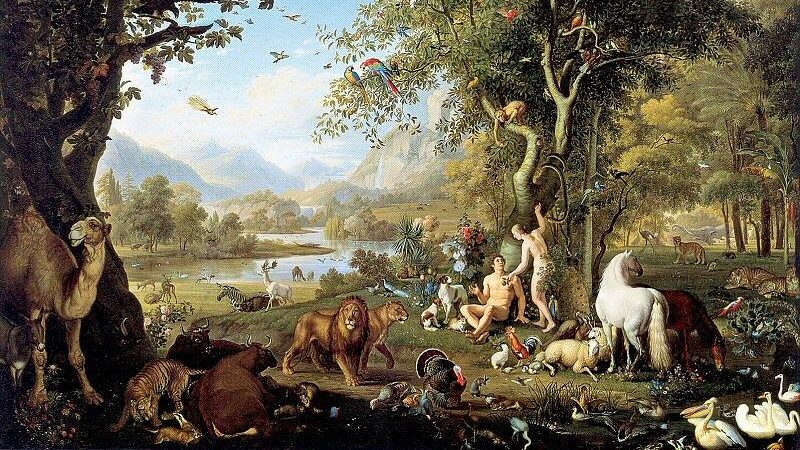
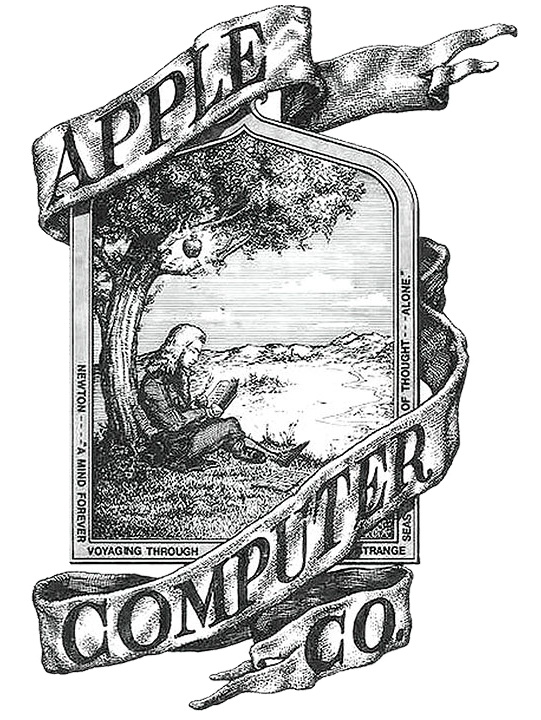 The original logo of Apple Computer Co. was this woodcut. In it, we see Sir Isaac Newton about to “discover” gravity when an apple falls on his head. The story is undoubtedly apocryphal, but, just like we imagine naked Adam and Eve gorging themselves on apples behind conveniently arranged foliage, the image of Sir Isaac Newton sitting under an apple tree in his Sunday best while reading a book is how we imagine gravity being discovered.
 “Aha!” you might exclaim. “That’s the bite by which Eve disobeyed God!” You would exclaim that right before I smacked you upside the head and reminded you that the fruit of the Tree of the Knowledge of Good and Evil was not an apple, but rather was the fruit of the Tree of the Knowledge of Good and Evil.
 First, let me say that this was a slow quarter for progress. It has gotten to where I (Craig) am usually the only programmer working on this project and the end of the year has required me to turn my attention to other things. Probably the biggest of these was wrapping up my
  Finally, this quarter is when we update our
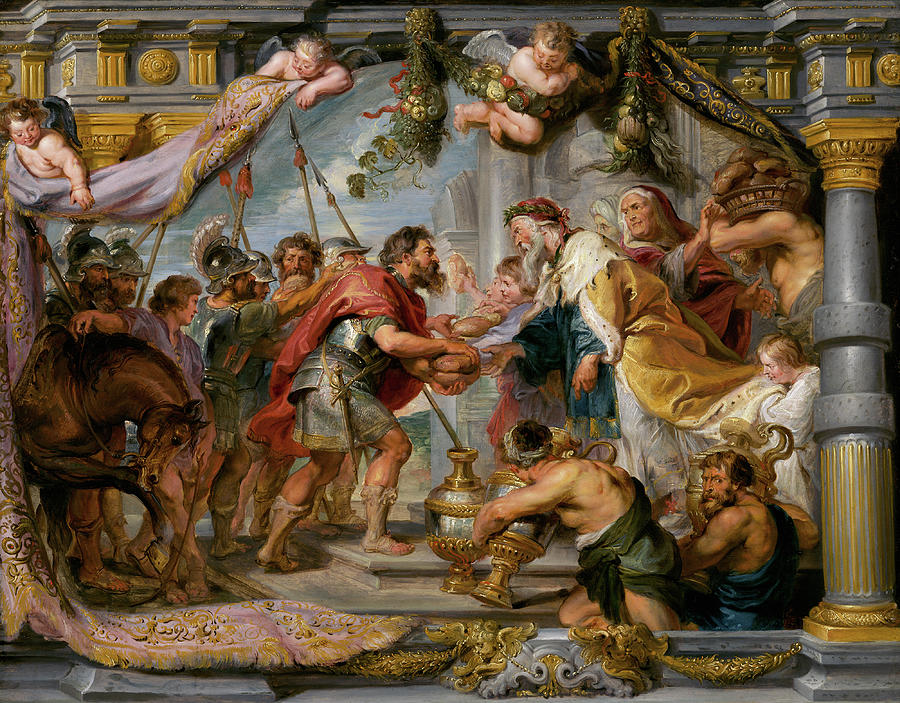

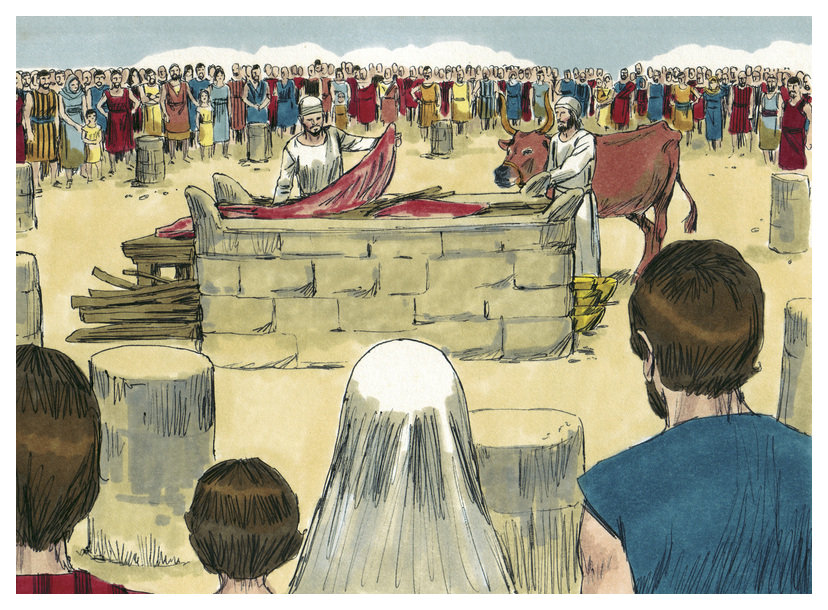
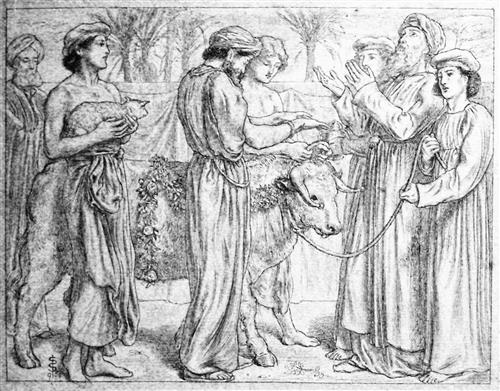 These details are absolutely important — if you’re a descendant of Levi ministering in the tabernacle or temple. But a more general understanding of the Old Testament sacrificial system is all that is needed for Christians trying to read and understand the Bible today. We need to know that God required a blood sacrifice for sin. Then we can understand what we read in Hebrews: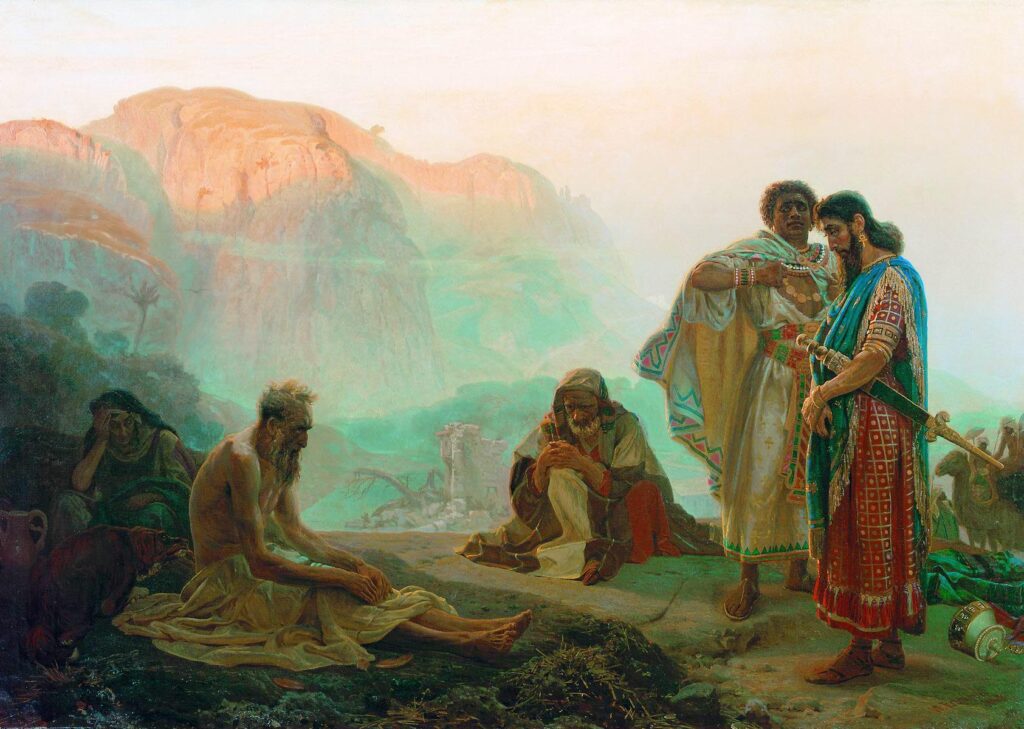
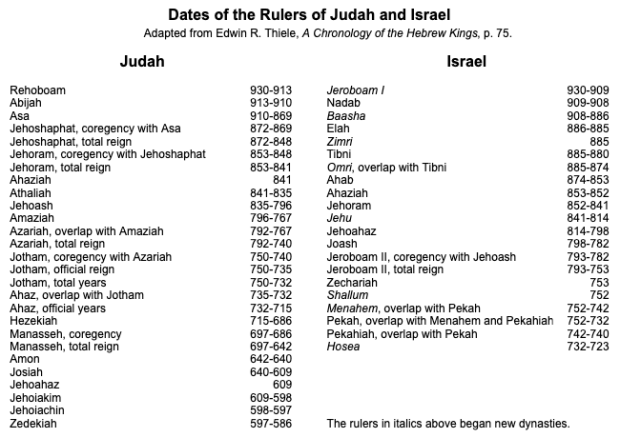
 The biblical character Job is among the most ancient persons in the Bible. He is believed to be a contemporary of Abraham (circa 2000 BCE). In the traditional 66-book Bible, the story of Job is found after the book of Esther and before the book of Psalms. The book of Esther describes events in Persia around 480 BCE, around the time that the first remnants of the Jews were returning to Judah after being deported. Most of the Psalms date to the time of King David, 500 years earlier (around 1000 BCE). Based on what you read before and after Job, it would be easy to get the impression that Job was a Jew (he was not), or that he was a contemporary of Saul, David, and Solomon (he was not), or that he lived after the deportation and captivity of Israel and Judah (he did not).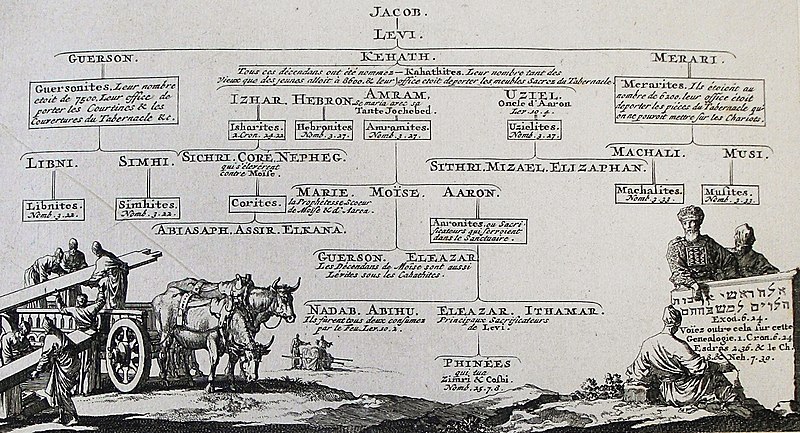
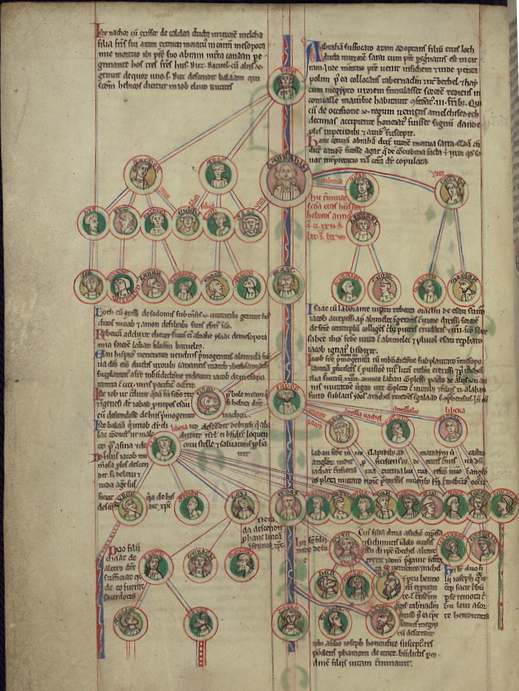 Out of curiosity, I made a detailed list of all the genealogies, census records, and lists of people I found in the Bible. I found 38 overt genealogies, 53 other lists of (sometimes related) people, and 5 census records (family names and counts). Together, these passages account for 3.5% of the text of the Bible. 3.5% doesn’t sound like much, but it means that in your one-year trip through the Bible, you’ll spend 13 days just reading lists of names.
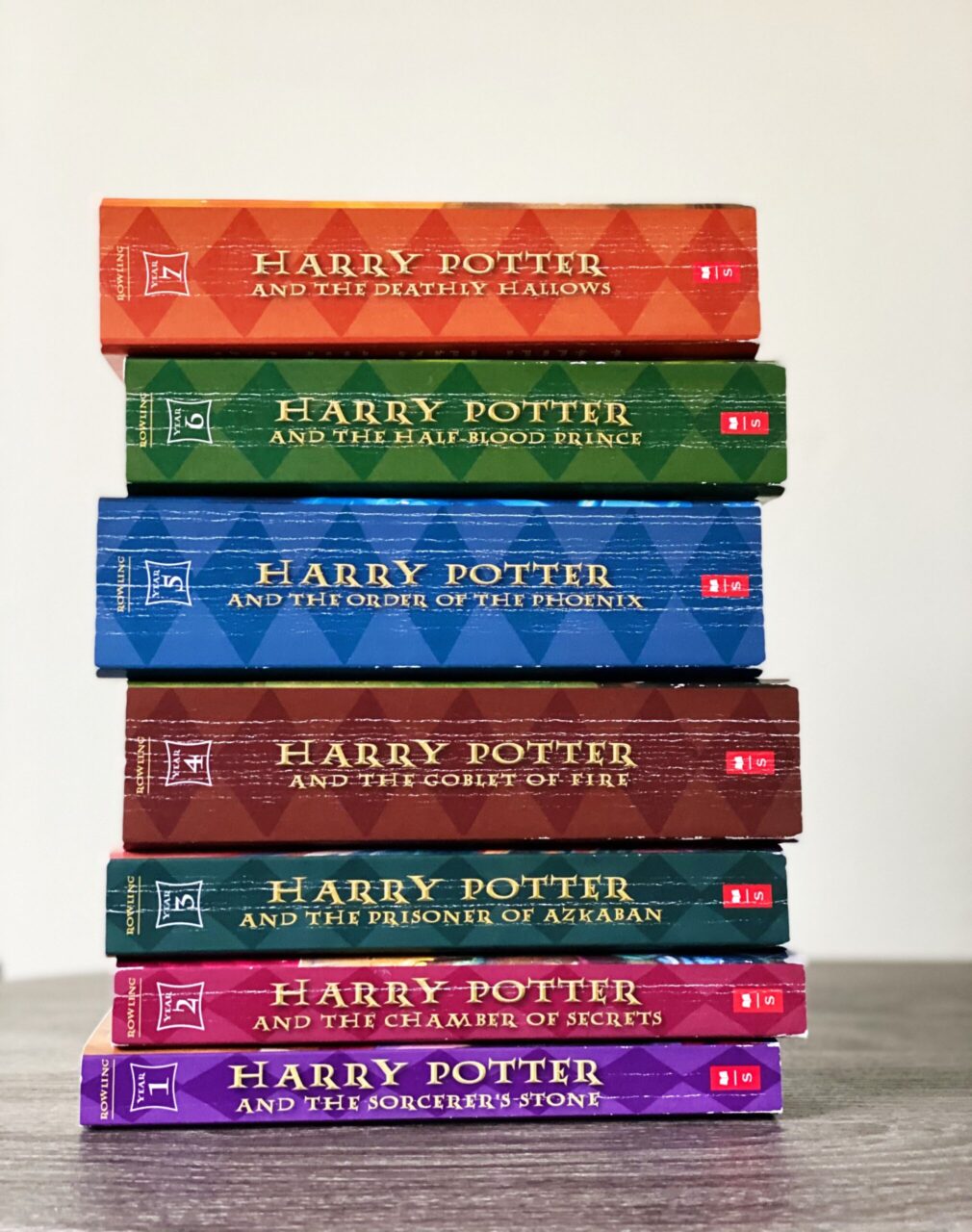 The Bible contains 1189 chapters and a total of 31,102 verses. Those verses combine to contain over 750,000 words. That’s the equivalent of about 11-12 average-length novels. It’s longer than the first 5 Harry Potter books, and you know how much you hate to read those!
  Imagine adding 8-9 minutes to your morning routine. Most of us would have to get up 10 minutes earlier, and that’s just not going to happen! We could carve it out of the 3 hours per day we spend watching TV, but then how would we keep up with the Kardashians? One website says we spend 63 minutes each day eating. Maybe we could skip breakfast. Or dessert.