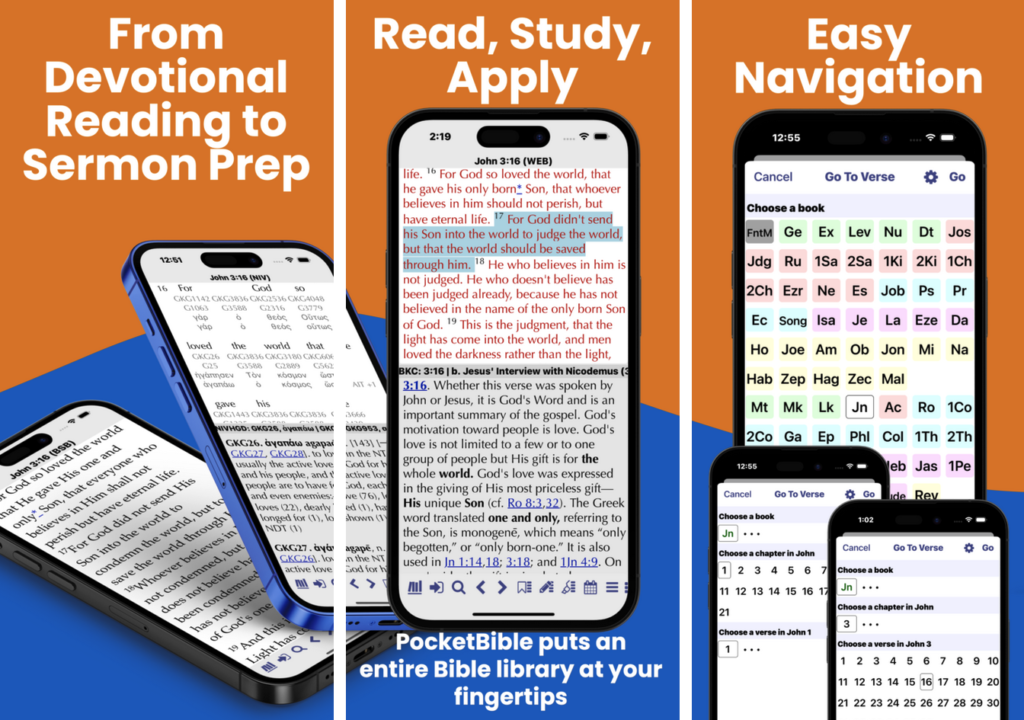
The latest version of PocketBible for macOS (version 3) is now available!
This version requires a Mac with Apple Silicon (M-series or A-series processor). With Apple quickly abandoning Intel, it’s unlikely we’ll do a version of PocketBible 3 for Intel processors. Instead, we’ll continue to distribute version 1.4 for those who want to get the last bit of life out of their older, Intel-based Mac.
This new version is built from the same code that powers PocketBible 3 for Windows. Or rather, we should say that the Windows version is built from the same code that powers PocketBible 3 for macOS. We’re 100% macOS-based here, so all development was done on the Mac. The framework we use (Electron) allows us to build for Windows by simply building the app on a Windows machine. Once that version was released, we simply packaged up the Mac version we had already been using and made it available here.
Version 3 can be installed alongside the current version (1.4.2) of PocketBible for macOS. The two versions don’t interfere or cooperate with each other. They are entirely separate apps.
Your Advanced Feature Set subscription for PocketBible 1.4.2 for macOS will enable the Advanced Feature Set in PocketBible 3.
If you have the “Legacy AFS for PocketBible for macOS” (purchased before the AFS became a subscription), almost all the AFS features in version 3 will be enabled. The exception is the ability to view HTML documents that link to PocketBible. That is a new feature added in version 3, so it is not part of the legacy AFS.
Click here to read more about PocketBible 3 and to download.
If you want to keep your old PocketBible 1.4.2, just answer “Keep Both” when macOS warns you that you already have an app called “PocketBible”. It will add a number onto the name of the app, so it will likely be called “PocketBible 2”. That’s not a version number; it’s just means it’s the second app called “PocketBible” that you installed.
Are You Abandoning my Intel-Based Mac?
We’re not, Apple is. All new Macs since about 2023 have been Apple Silicon-based. macOS 26, released late in 2025, is the last version of macOS that will run on Intel-based Macs. Apple will discontinue support and security updates for that version of macOS in late 2028.
We plan to make the older version of PocketBible available at least through 2026 and to offer tech support no longer than October 31, 2028.
The latest version of PocketBible for macOS (version 3) is available for those who want to give it a try before we formally roll it out. Download link is below. But first, here are a few things you might want to know.
Version 3 requires a Mac with Apple Silicon (M-series or A-series processor). With Apple quickly abandoning Intel, it’s unlikely we’ll do a version of PocketBible 3 for Intel processors.
This new version is built from the same code that powers PocketBible 3 for Windows.
Version 3 can be installed alongside the current version (1.4.2) of PocketBible for macOS. The two versions don’t interfere or cooperate with each other. They are entirely separate apps.
Your Advanced Feature Set subscription for PocketBible 1.4.2 for macOS will enable the Advanced Feature Set in PocketBible 3.
If you have the “Legacy AFS for PocketBible for macOS” (purchased before the AFS became a subscription), almost all the AFS features in version 3 will be enabled. The exception is the ability to view HTML documents that link to PocketBible.
Click here to download the DMG. Launch it and drag the app to your Applications folder. The icon (left) looks different than the version 1 icon, so you should be able to tell them apart.
If you want to keep your old PocketBible 1.4.2, just answer “Keep Both” when macOS warns you that you already have an app called “PocketBible”. It will add a number onto the name of the app, so it will likely be called “PocketBible 2”. That’s not a version number; it’s just means it’s the second app called “PocketBible” that you installed.
If you run into any problems, just report them to tech support. Let them know you’re running version 3.
PocketBible for Windows went from having the worst to the best set of features in its Advanced Feature Set (AFS). Let’s take a quick look at what we get in the AFS for PocketBible 3 for Windows.
Appearance Improvements
An AFS subscription gives you three times more color schemes to choose from. Or, if you feel creative, define your own custom color scheme. Custom color schemes control every color used by the app, not just text and background colors in your books.
Layout Improvements
With the Advanced Feature Set, you can name your screen layout, then create an entirely new one, perhaps for a different purpose. You can have one layout for personal Bible study and another for Sunday morning. If you name your layout “Today”, pressing the Today’s Reading button on the toolbar won’t just take you to today’s reading in your favorite devotional, but will open the Today layout where you can have the devotionals, reading plans, and Bibles open that you use for daily reading.
Named layouts open some other possibilities. Expand a single book into an entire, full-screen layout. Or expand a single pane containing one or more books into new layout. Finally, you can expand the tabs of a single pane into parallel panes in a new layout. This last one is an easy way to create parallel Bibles.
Library Search
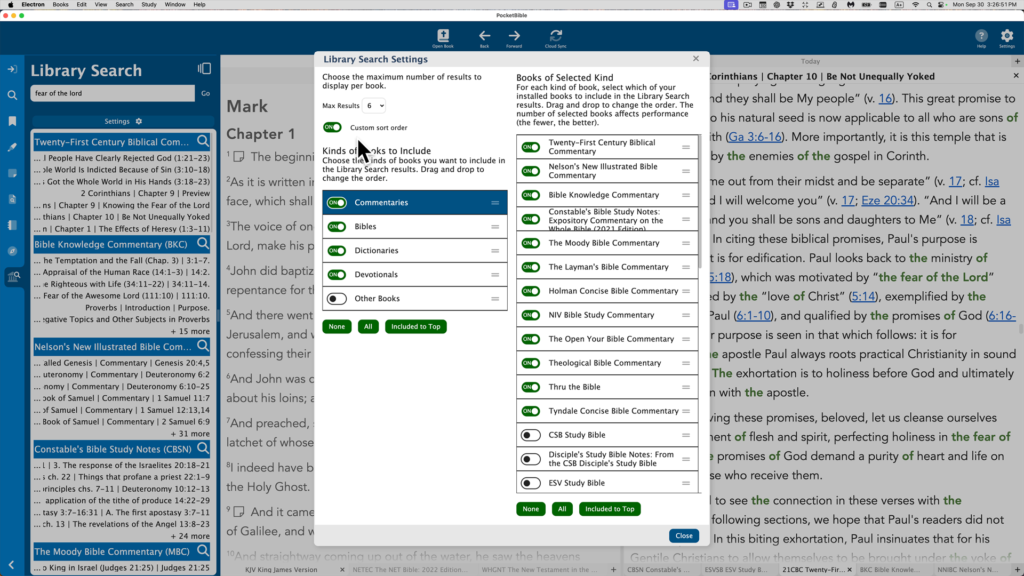
An AFS subscription enables a new feature in the Study Panel called Library Search. Search your entire library or just a selection of books in your library for words and phrases. Sort by frequency of occurrence of your search term, or sort books in alphabetical order. Choose a result launch a full search of the book, including supplemental searches like “same root word” and “sounds like”.
And new to PocketBible in this version 3 for Windows — export your Library Search results to an external window. From there you can print, save, or copy the results of your search.
Journal Notes
We’re happy to bring Journal Notes to the Windows version for the first time. This popular feature lets you create notes that aren’t tied to a Bible verse or a reference book, but rather are accessed by their title.
View HTML Files
The idea of exporting lists in PocketBible to external windows very quickly led to the ability to view HTML files in external windows, with active Bible reference links back into your PocketBible Bible. Plus, any references that you link to PocketBible will have “hover” support. Rest your mouse cursor on the link and PocketBible will pop up the text of the verse.
Library Navigator
The Library Navigator displays a list of everywhere the current verse in the active Bible is referenced in each book in your library, making it easy to find related commentary or background discussion for any verse in the Bible
Autostudy
The Advanced Feature Set introduces Autostudy to PocketBible for Windows for the first time. This feature allows you to select any group of books, then produce a report showing what every book in your selected books has to say about the chosen verse or word. You can also use it to output everything you need for today’s devotional reading — the article of the devotional itself, plus the text of any verses you need to read from your favorite Bible.
We’ve also brought AI Insights to PocketBible for Windows from the iOS version of the app. Integrated into the Autostudy feature, AI Insights uses ChatGPT to deliver thoughtful commentary, historical and linguistic background, and deeper understanding of the text. With carefully designed prompts, it draws on resources beyond your library to provide Bible-centered, informative insights that enrich your studies.
It also wrote that previous paragraph, by the way. 🙂
Named Highlight Colors
With AFS features enabled, you can assign names to your highlight colors to remind you what each color means.
Text-to-Speech
Just as it does on other platforms, PocketBible 3 for Windows uses built-in text-to-speech capabilities in Windows to read the Bible — or any of your books — to you.
Rather than read about it, why not download PocketBible 3 for Windows and give it a try? You can install it without removing previous versions — they neither interfere with nor interact with each other.
It’s difficult to write briefly about this version of PocketBible. Here are some of the things we like best about this new version of PocketBible.
Flexible Layout
Resize panes. Split panes horizontally or vertically to add a new book or group of books. No longer are you limited to only one type of book like you were in version 1, and no longer are you limited to only a certain layout like you were in version 2.
Customizable Appearance
Would you prefer the toolbar across the bottom of the screen? Just change it in Settings. Prefer the Study Panel on the right instead of the left? Change that, too, while you’re there.
PocketBible 1 was almost too customizable when it came to fonts, font sizes, and colors. These applied only to specific types of panes, so to change colors across the board, you had to change colors in several places. Same with fonts and sizes. PocketBible 3 makes it straightforward to change font, text size, and color scheme.
And when you change the text size for your books and Bibles, other text in the app gets bigger or smaller right along with it. On top of that, you can zoom or un-zoom the entire app with a single press of Ctrl++ or Ctrl+-.
Searches
We’ve ported our newer search algorithm from iOS, Android, and macOS to this Windows version. Now when you search for a word, you’ll also find instances where words that sound like what you’re looking for, and other instances where words have the same or similar root word as the one you’re looking for. Exact matches will be at the top of the results list, of course, but these other searches will be available, too.
Notes
We’ve ported the rich text noted editor, similar to what we use on other platforms, to Windows. If you want something bold, just press Ctrl+B or select the “bold” button. No more trying to remember weird HTML tags to do a simple task.
External Windows
Search results, both of your books and your notes, lists of bookmarks, and lists of highlighted verses can all be exported to an external window. You can save, print, or copy from these windows. When you’re done with them you can close them, or leave them open and they’ll be there the next time you launch PocketBible
Compatibility with All Our Bibles
A few years back we found we had to make changes to our Bible format in order to make it easier to release new translations of the Bible. We were able to update the iOS, Android, and macOS versions of PocketBible, but in a story too sad for this blog, we couldn’t update the Windows versions — until now. The new version of PocketBible works with all our Bibles. Seems like that would have happened sooner. We agree. But it’s here now.
Automatic Sync of User-Created Data
PocketBible 1 for Windows Desktop required you to manually sync your data to our server. PocketBible 2 for Windows Store required you to pay to even use those features. In PocketBible 3, synchronization of your notes, highlights, bookmarks, and devotional reading progress is automatic — or manual if you prefer. You can more easily keep all your devices in sync. And it’s included in the standard feature set.
Cloud Library
Originally in PocketBible 1, each book had to be manually downloaded and installed using the Windows installer process. We eventually wrote a Cloud Library app, but it was a stand-alone, separate app that could be hard for some to find and use. PocketBible 2 had an integrated Cloud Library functionality, but it was finicky and to be honest, even when it worked it wouldn’t display the correct download progress percentage. And sometimes it would just start downloading books whether you wanted it to or not. The Cloud Library function in PocketBible 3 is built-in, easy-to-use, and reliable.
More Standardized User Interface
PocketBible 2 for Windows Store was originally designed for Windows Phone. (I bet you didn’t know that.) So it had some behaviors that made sense on a phone but were mystifying on the desktop. For example, right-click caused the toolbars to be displayed — toolbars we all thought should always be visible. To get the menu you normally get when you right-click, you had to press and hold the mouse button. Navigating back and forth by pages required hitting hidden buttons. In PocketBible 3, the toolbar is always at the top of the screen (or the bottom if you prefer), and right-click always displays a context menu as expected.
Rather than read about it, why not download PocketBible 3 for Windows and give it a try? You can install it without removing previous versions — they neither interfere with nor interact with each other.
Sunday, November 2, 2025 — Today we released the long-awaited PocketBible 3 for Windows. The new app is available for download from our website.
Coincident with this release, the old Windows Desktop (version 1), Windows Store (version 2), and Windows Phone versions of PocketBible have been retired.
How To Upgrade
Current users of the Windows Desktop version of PocketBible who are running Windows 10 or 11 can update by syncing their user data (notes, highlights, bookmarks, and devotional reading progress) to our server (assuming you’ve been doing that from time to time and want to keep this data), then download the new version by following the instructions below.
Current users of the Windows Store version of PocketBible who are running Windows 10 or 11 can update by syncing their user data (notes, highlights, bookmarks, and devotional reading progress) to our server (assuming you have the Advanced Feature Set, which is required in order to use that feature on the Windows Store version of PocketBible), then download the new version by following the instructions below.
To install PocketBible 3 for Windows, go to https://laridian.com and select the Windows platform from the list on the right. Select the large PocketBible graphic and follow the download instructions on that page. The new version doesn’t replace your old version; it’s an entirely new app. Once you’re sure it’s going to work for you, you can remove the old version.
Advanced Feature Set Users
If you own a subscription for the Advanced Feature Set for PocketBible for Windows Store, your subscription will just work on the new version. It will automatically enable the AFS once you launch the new app and register.
If you own the old “legacy” AFS version for PocketBible for Windows Store from before it became a subscription, your AFS will also be recognized by PocketBible 3 once you register. However, you will only have access to the AFS features that are implemented in the new version and were present when you purchased your copy of the AFS. Most of the features of the Windows Store AFS are standard in this new version. The only two features that your legacy AFS will enable are named layouts and text-to-speech. To get the rest of the AFS features, you’ll need a subscription.
Future of Versions 1 and 2
We are stopping distribution of older versions of PocketBible immediately.
We don’t have an official end date for tech support for the older versions, but we will be encouraging everyone with any problems at all to upgrade. We will eventually announce an end to support; probably sooner for version 2 than for version 1, since users of version 2 can likely run version 3, while users of version 2 still running Windows XP, Vista, and 7 won’t be able to run this new version until they upgrade their hardware.
Caveat Emptor
There are sure to be problems for a little while now that this version is getting wider distribution. Our beta testers have been working on it since March, so we have a lot of confidence in it. If you run into problems, contact tech support and let us know.
We’ve reached the point in the testing of PocketBible 3 where we’re ready to let a larger group of people play with it and poke holes in it.
We’ve had a small group of invited testers using it over the last 8 weeks or so. It’s not perfect but it’s very usable. So we’d like to open it up to anyone who’d like to try it.
You can run this new version alongside either or both PocketBible for Windows Desktop (version 1.x) or PocketBible for Windows Store (version 2.x). None of the three versions of PocketBible for Windows interfere with each other, share any data, or even know that the other is there. The exception is if you have notes, highlights, bookmarks, or daily devotional reading progress that you sync to our server and share with PocketBible running on your other devices. In that case, changes you make to your notes (for example) in the beta version will/should show up on your iOS or Android device. And changes on those devices will find their way to this new Windows version.
Because your user-create data (notes, highlights, bookmarks, and devotional reading progress) is important to you, we give you the option to have us make a backup copy as you launch into testing. Then you can either use the beta version while signed into your Laridian account, knowing you can always recover your data as it existed the day you signed up, or you can use the backup account that we create for you to do all your testing in. You won’t be able to sync your user data with your other devices in the latter case, but we encourage you to log into the backup account on at least one of them so you can test the sync features.
To sign up for the public beta, fill out the form here. We’ll send you further information on where to go to download the app.
December 16, 2024 — Update: Google reinstated PocketBible within a couple days of our re-complying with their re-request for information we had already provided.
December 9, 2024 — We were informed this morning by Google that they’ve removed PocketBible from the Play store, claiming we haven’t verified our identity. Never mind that we’ve had products in the Play Store for over a decade.
They’ve been asking us to jump through some verification hoops every couple of weeks for the last three or four months. Every time they ask, we jump through their hoop. Now they claim that there was no hoop and even if there were, we didn’t jump. So they’ve removed the app from the Play Store.
November 9 Update: PocketBible 4.18.2 was approved on November 9. Additional bug fixes noted below. PocketBible 4.18.1 was approved on October 31. Fixes a couple bugs in the earlier 4.18.0 release.
Version 4.18.0 was approved for distribution on the App Store on October 28.
The main motivation for this update was to fix several little problems that had shown up in PocketBible as the result of recent iOS updates.
While we were in the code, we took a look at the bug list and squashed a few of the bigger ones. And while we were doing that, we moved some code back into the iOS/macOS codebase from the new Windows app in order to gain functionality. This turned out to mostly affect the Advanced Feature Set features — Autostudy in particular.
Here’s an annotated list of fixes in version 4.18.0-4.18.02
Autostudy
Most of the work in this version turned out to be related to the Autostudy feature.
Letters with accent marks could break word and verse Autostudies. This was a fascinating bug to fix, only because it turned out to be a minor problem with code that has been in our apps for Pocket PC, Palm OS, Windows, macOS, and iOS since 2004. It had just never been invoked in exactly the right way to expose this bug. The fix was simple once we found it.
Changes to the verse, word, or date being studied weren’t always recognized. If you changed the verse without closing the Autostudy window and starting again, PocketBIble might not recognize the change. Another easy fix.
While the link on the word “Note” at the beginning of verses with notes was not there, the word “Note” was there. One of the advantages of being me (Craig) is that when you’re doing your own Bible reading and spot something annoying, you can fix it. So I did.
Word Autostudies now support phrases, not just words. This was added in the Windows code then ported back to the macOS/iOS codebase where it came from.
Better algorithm for discovering sources of cross-references. We took some time during the Windows project to come up with a better algorithm for this. We look for commentaries that cover a high percentage of the verses in the Bible, that have a large number of links per entry, and in which links are a high percentage of the total text in the book.
Bible verses in date Autostudies can now appear in devotional order instead of date order. As you know, I’m a fan of doing my daily reading in chronological order. I tend to use resources like the One Year Chronological Bible or my own 7-Minute Bible for Bible reading. When using the OYCB, Autostudy would put the verses in biblical order instead of leaving them in chronological order. This defeats the purpose. This feature fixes that.
Navigation buttons at the top of Autostudy reports. This feature was borrowed from the work we did on Autostudies for the new Windows app. It puts a row of navigation buttons at the top of your Autostudy reports to make it easier to navigate those long files.
AI Insights in Autostudy
This one deserves its own section. We’ve integrated ChatGPT into PocketBible to generate custom commentary, original language insights, devotional thoughts, and other useful information. This feature requires an active Advanced Feature Set subscription. It is not available to users still relying on the old “permanent subscription to the legacy AFS features” from version 3 of PocketBible.
Before you dismiss this innovative and useful feature, you need to give it a try.
As you may know, ChatGPT is a large language model that is able to give in-depth, human-sounding answers to natural-language questions. The key to using ChatGPT effectively is to craft the appropriate query (or “prompt”). We’ve spent a lot of time over the last year and a half designing prompts and instructions that cause it to give responses that are Bible-based and Bible-first. It avoids dogma and denominational bias and favors what it clearly reads in the Bible. It uses biblical terminology where political correctness would prefer non-biblical alternative language.
ChatGPT is trained on virtually everything that has ever been written about everything. As a result, it brings to your study deep knowledge of biblical languages, of biblical and secular history, and of the geography, politics, and culture of the lands and peoples of the Bible. We call the articles it writes for PocketBible, “AI Insights”.
AI Insights in Verse Autostudies
Bible Commentary — Scholarly, accurate Bible commentary that is written at the level of an average Bible reader. Includes historical/cultural context, information about the author and original audience of the passage, the role of the verse in the surrounding passage, and practical application. The article will cite its sources if it refers to other Bible passages.
Cross-References — A list of cross-references for the topics in the verse or passage, organized alphabetically by topic.
Theological and Doctrinal History — Discusses varying interpretations of the passage or concepts covered by the passage and how they have been debated throughout church history.
Hebrew and Greek Insights — Lists key Greek or Hebrew words used in the passage, along with their meanings, usage in other contexts, and nuances that might affect the meaning of the passage. To make these articles more accessible, words are transliterated rather than spelled out in the original languages.
Sermon or Lesson Title with Outline — Produces an alliterated outline (or a close approximation thereof) and a suggested sermon title for the passage.
AI Insights in Word Autostudies
Bible Dictionary — An article about the word or phrase being studied, including a definition of the word(s), key Bible verses that use the word(s), and insights from the Greek and Hebrew words that are often translated using this word.
AI Insights in Autostudy Today
Inspriational Thoughts — An inspirational reflection on today’s Bible passage(s). The attributes, promises, and commands of God are emphasized. The goal is enriched worship and prayer, and a deeper personal connection with God.
Commentary — Basic Bible commentary on the passage(s), including background information, historical context, and explanations of key themes. Important Hebrew or Greek words are defined and their implications discussed.
Applying Today’s Verses — The focus is on the practical application of today’s passage(s). How do the teachings and principles in the passage(s) guide the reader’s behavior, decisions, and relationships as they live out the commands and promises of God in practical ways?
Today in Christian History — This article is different in that it is not about the Bible passage you’re reading but is about what happened on this date throughout Christian history. The emphasis is on known dates, not dates when events are traditionally celebrated, and on people and events, rather than on holidays and commemorations.
Other Features and Fixes
Some apps had trouble pasting text from PocketBible. PocketBible has been putting formatted text on the clipboard (actually called the “pasteboard” in macOS and iOS) since the first day it was supported. (You probably have forgotten that the first two major releases of iOS did not even have a clipboard. The clipboard wasn’t introduced until iOS 3.)
When apps put text on the clipboard, they have to identify the format of the text so that the receiving app knows what it’s looking at. Somewhere around iOS 17 or 18, certain apps stopped recognizing the original identifiers for some of the rich-text clipboard formats, and as a result would misinterpret text placed there by PocketBible. We’ve resolved this in a way that maintains compatibility with the past while adopting the newer identifiers.
Punctuation in selected or entered text could confuse search, look-up, and Autostudy features. We do a better job of filtering punctuation than we used to. Note that 4.18.0 was too aggressive about removing punctuation and introduced a problem that has been fixed in 4.18.2.
AFS subscription management on the menu was linking to the wrong URL. Apple changed the URL for subscription management and we didn’t notice it until recently.
The space after a trailing apostrophe was missing in certain Bibles. Instead of “Jesus’ disciples”, you’d see “Jesus’disciples”. The fix for this in 4.18.0 and 4.18.1 introduced other problems. 4.18.2 fixes it.
Searching for non-existent words at the beginning of phrases could fool PocketBible. Searching for “grafted in” in a Bible that does not contain the word “grafted” would give the results for “in” instead of saying that the phrase doesn’t occur.
Wildcard searches were broken by changes in 4.18.0. Fixed in 4.18.2.
Wildcard searches were inadvertently omitted from the User’s Guide. The User’s Guide was severely lacking in detail when it came to the search features. We updated the User’s Guide for 4.18.2, adding information about certain types of search patterns that have been in our apps for 10 years but have just never been documented.
The “toggle play/pause” button on certain headphones didn’t work with the synthesized speech feature. This turned out to be a complete oversight on our part. Sorry about that.
Text would scroll some random number of pages up or down when the height of the window changed. This was usually the result of showing or hiding the toolbox on the iPad version of PocketBible. Apple changed the order in which certain things were done when resizing the window, which caused our attempt to keep the text at the same location to be defeated.
Link previews in notes might not be able to be dismissed, or, when dismissed, would close the note viewer. Fixed in 4.18.2.
There is a small number of other fixes that aren’t worth mentioning.
Once again, we’re overdue for an update. I know it seems like this is taking a long time, but we really are getting closer to at least a beta release. You can watch the video if you want to see the program in action. It’s a long one this time.
Almost everything in this update is an Advanced Feature Set feature. As a reminder, if you have an AFS subscription (or if you own the “legacy AFS” before it became a subscription) for the Windows Store version of PocketBible, it will gain you access to the equivalent features in this new version. Since the features we’re going to talk about today are not present in the current Windows Store version, your AFS subscription for that version will not get you access to these features. You’ll need a new subscription to the new version for these features.
User Note Indicators
One thing that is not an AFS feature is the new indicator for user-created notes in the text. You’re used to seeing the word “Note” linked to your notes at the beginning of a verse. PocketBible 3 for Windows will let you select either a duotone solid or outline note icon to use in place of the word “Note”.
Position of Layout Tabs
In previous screenshots and progress report videos, you’ve seen that the row of layout tabs extended all the way across the screen, including the area above the study panel. We’ve modified the layout so that the tabs appear over the text panes only.
Navigator
The Navigator is a featured ported from the macOS version of PocketBible. It allows you to see a list of all the places in your entire library (or a subset of your library that you define) where the current verse is mentioned. The Navigator can be set up to display its results based on which of your books contain the most references to the current verse, or it can be configured to always show your books in an order you choose.
When you select a link from the Navigator pane, you’re taken to the section of the book where the active verse is mentioned. You can configure the Navigator to always be active or you can disable the continuous updates and manually refresh its content when you need it.
Library Search
As you may have guessed, the Library Search study panel is where you perform searches across your entire library — or the portions of your library that you select. Library Search does not perform the full range of searches (such as “sounds like” and “root word”) that the single-book search does. Instead it looks only for exact matches, so that it can search your entire library quickly. To perform a deeper search of any single book, you can select the magnifying glass icon next to that book.
Searching your entire library can take time, so we provide a way for you to select only those books that you are most interested in searching. You can also control the order in which results are displayed — either by putting the books with the most search hits on top, or by following the order that you choose.
Verse Autostudy
If you’ve used PocketBible for Android, iOS, or macOS, you’re familiar with PocketBible’s Autostudy feature. It lets you easily collect material from your library that is related to a given verse (or passage), word (or phrase), or date. Autostudy will be implemented in PocketBible 3 for the first time on the Windows platform.
Verse Autostudy works on a single verse (“John 3:16”) or on a contiguous range of verses (“John 3:16-18”). You select the books that you want included in your results, and the order in which the books should appear.
For the Windows version we’ve improved the method PocketBible uses to determine if a given commentary is a “book of cross-references”. Previously, only the Treasury of Scripture Knowledge qualified. PocketBible 3 for Windows can look at a book at runtime and decide if its cross-reference density is high enough to make it useful for this function.
We’re introducing AI Insights as an experimental feature in this version of PocketBible. PocketBible can perform custom queries of ChatGPT to create Bible commentary for the passage, generate a list of topical cross-references related to the passage, provide theological and doctrinal history as it relates to the passage, give you insight into key Greek or Hebrew words used, and even generate a sermon title and alliterated outline. (We’ve found the alliteration to be hit-and-miss, but it does reasonably well on creating an organized outline.)
Any time that a Bible reference appears in your Autostudy reports, it is “hot” — click on it and PocketBible will go to the selected verse. This applies to your AI Insights as well — that is, the links to Bible verses are added to ChatGPT output so that references in its output can link to PocketBible. In addition to Bible verses, any links in the books that are in your Autostudy output are active as well.
This linking feature is also present in Word and Today Autostudy results.
Similar to Verse Autostudy, you can ask PocketBible to collect information from your library on a given word or (new in the Windows version) phrase. For the Windows version, we’re adding the AI Insights feature. PocketBible will use ChatGPT to generate a Bible dictionary entry for the word or phrase you give it.
The purpose of Autostudy Today is to collect all the Bible verses you need to read on a given day. Assuming you’re doing one of our read-through-the-Bible plans, this can be very convenient.
AI Insights is also coming to Autostudy Today. You’ll be able to generate three types of devotional readings: An inspirational reading that focuses on the praise, prayer, and the attributes of God as revealed in the passage you’re reading; a commentary on the passage, providing background and interpretive information on the passage; or an applicational article, encouraging you to apply and practice what you’ve learned. You can also get an article entitled “Today in Christian History” that gives you information about key events that took place on today’s date in the past.
A couple of interesting synergies happened as a result of implementing Autostudy. First, the dialog that lets you choose the books you want included in the Autostudy came in very handy for choosing the books you want to include in the Navigator and Library Search features.
Second, we needed a way to display Autostudy output. After some experimentation, we came up with the idea of using an external window with its own controls to allow you to save, copy, and print your Autostudy reports. It wasn’t much of an extension to this feature to make it so that you can re-open a saved report. And if you can re-open a saved report, you can open any HTML document in one of these windows. And if you can open any HTML document, you can open HTML documents that you create yourself, and any links you put in those documents can link to PocketBible.
Once we had this capability, it solved another problem. Many of you have asked for a way to copy search results to the clipboard. We used external windows to not only give you the ability to copy search results to the clipboard, but to allow you to print or save them. And since links in external windows are active, when you output your search results to an external window, it behaves a lot like the Search pane in the Study Panel — select a search result to cause PocketBible to show you the verse in context.
And then, once we had the ability to output search results, it wasn’t much of an extension to also output lists of bookmarks, highlights, and notes, and also to output your Library Search and Navigator results.
Any external windows you have open when you exit PocketBible will be re-opened when you launch it later.
What’s Next
We believe the app is “feature complete”. There’s nothing major that needs to be added before it will be ready to ship. There are a couple small features that are “on the bubble” and either could or couldn’t be added before we release at least a beta version. But for the most part, it’s safe to say that there are no major features left to be added.
There are a number of bugs on our list that need to be found and squashed. None of these are large, but sometimes you can’t tell how hard it’s going to be until you get into the code and figure out what’s going on.
We are very sensitive to maintaining the integrity of your user-created notes, highlights, bookmarks, and devotional reading progress. We’ve been testing this code as we’ve implemented it, but I want to take a step back and re-run the full test suite on this code before we trust it with your data.
We’re not announcing any ship date at this point, of course, but we anticipate that our next update (whenever that might be) will be to announce a beta version. No promises. Just letting you know what we’re thinking at this point.
I was happy to have the opportunity to talk about 35+ years of developing Bible software, starting at home, then at Parsons Technology, then at Laridian. Check out biblebuyingguide.com for reviews of Bibles and other materials related to reading and studying the Bible.


 Click here to read more about PocketBible 3 and to download.