PocketBible for Windows went from having the worst to the best set of features in its Advanced Feature Set (AFS). Let’s take a quick look at what we get in the AFS for PocketBible 3 for Windows.
Appearance Improvements
An AFS subscription gives you three times more color schemes to choose from. Or, if you feel creative, define your own custom color scheme. Custom color schemes control every color used by the app, not just text and background colors in your books.
Layout Improvements
With the Advanced Feature Set, you can name your screen layout, then create an entirely new one, perhaps for a different purpose. You can have one layout for personal Bible study and another for Sunday morning. If you name your layout “Today”, pressing the Today’s Reading button on the toolbar won’t just take you to today’s reading in your favorite devotional, but will open the Today layout where you can have the devotionals, reading plans, and Bibles open that you use for daily reading.
Named layouts open some other possibilities. Expand a single book into an entire, full-screen layout. Or expand a single pane containing one or more books into new layout. Finally, you can expand the tabs of a single pane into parallel panes in a new layout. This last one is an easy way to create parallel Bibles.
Library Search
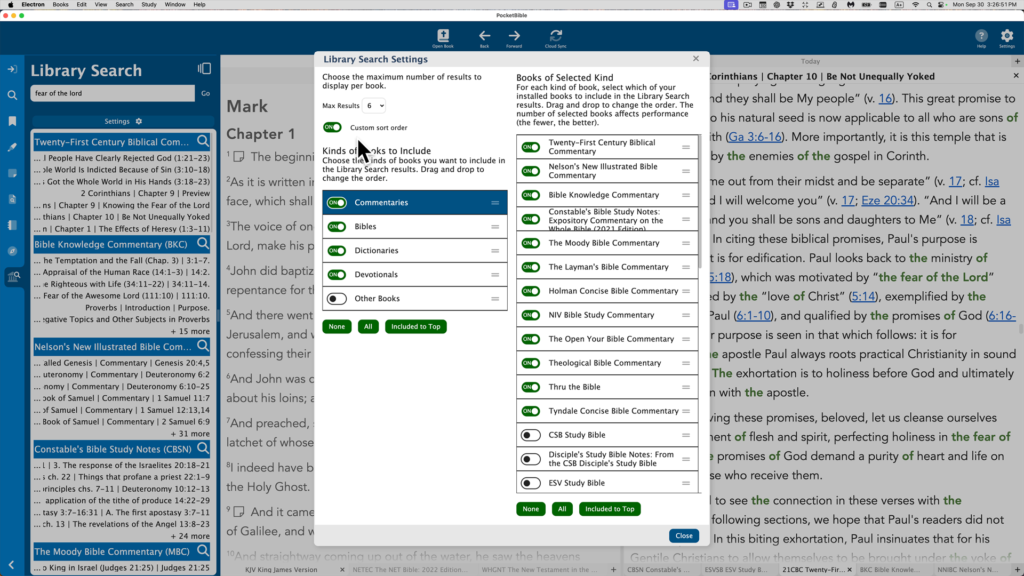
An AFS subscription enables a new feature in the Study Panel called Library Search. Search your entire library or just a selection of books in your library for words and phrases. Sort by frequency of occurrence of your search term, or sort books in alphabetical order. Choose a result launch a full search of the book, including supplemental searches like “same root word” and “sounds like”.
And new to PocketBible in this version 3 for Windows — export your Library Search results to an external window. From there you can print, save, or copy the results of your search.
Journal Notes
We’re happy to bring Journal Notes to the Windows version for the first time. This popular feature lets you create notes that aren’t tied to a Bible verse or a reference book, but rather are accessed by their title.
View HTML Files
The idea of exporting lists in PocketBible to external windows very quickly led to the ability to view HTML files in external windows, with active Bible reference links back into your PocketBible Bible. Plus, any references that you link to PocketBible will have “hover” support. Rest your mouse cursor on the link and PocketBible will pop up the text of the verse.
Library Navigator
The Library Navigator displays a list of everywhere the current verse in the active Bible is referenced in each book in your library, making it easy to find related commentary or background discussion for any verse in the Bible
Autostudy
The Advanced Feature Set introduces Autostudy to PocketBible for Windows for the first time. This feature allows you to select any group of books, then produce a report showing what every book in your selected books has to say about the chosen verse or word. You can also use it to output everything you need for today’s devotional reading — the article of the devotional itself, plus the text of any verses you need to read from your favorite Bible.
We’ve also brought AI Insights to PocketBible for Windows from the iOS version of the app. Integrated into the Autostudy feature, AI Insights uses ChatGPT to deliver thoughtful commentary, historical and linguistic background, and deeper understanding of the text. With carefully designed prompts, it draws on resources beyond your library to provide Bible-centered, informative insights that enrich your studies.
It also wrote that previous paragraph, by the way. 🙂
Named Highlight Colors
With AFS features enabled, you can assign names to your highlight colors to remind you what each color means.
Text-to-Speech
Just as it does on other platforms, PocketBible 3 for Windows uses built-in text-to-speech capabilities in Windows to read the Bible — or any of your books — to you.
Rather than read about it, why not download PocketBible 3 for Windows and give it a try? You can install it without removing previous versions — they neither interfere with nor interact with each other.
It’s difficult to write briefly about this version of PocketBible. Here are some of the things we like best about this new version of PocketBible.
Flexible Layout
Resize panes. Split panes horizontally or vertically to add a new book or group of books. No longer are you limited to only one type of book like you were in version 1, and no longer are you limited to only a certain layout like you were in version 2.
Customizable Appearance
Would you prefer the toolbar across the bottom of the screen? Just change it in Settings. Prefer the Study Panel on the right instead of the left? Change that, too, while you’re there.
PocketBible 1 was almost too customizable when it came to fonts, font sizes, and colors. These applied only to specific types of panes, so to change colors across the board, you had to change colors in several places. Same with fonts and sizes. PocketBible 3 makes it straightforward to change font, text size, and color scheme.
And when you change the text size for your books and Bibles, other text in the app gets bigger or smaller right along with it. On top of that, you can zoom or un-zoom the entire app with a single press of Ctrl++ or Ctrl+-.
Searches
We’ve ported our newer search algorithm from iOS, Android, and macOS to this Windows version. Now when you search for a word, you’ll also find instances where words that sound like what you’re looking for, and other instances where words have the same or similar root word as the one you’re looking for. Exact matches will be at the top of the results list, of course, but these other searches will be available, too.
Notes
We’ve ported the rich text noted editor, similar to what we use on other platforms, to Windows. If you want something bold, just press Ctrl+B or select the “bold” button. No more trying to remember weird HTML tags to do a simple task.
External Windows
Search results, both of your books and your notes, lists of bookmarks, and lists of highlighted verses can all be exported to an external window. You can save, print, or copy from these windows. When you’re done with them you can close them, or leave them open and they’ll be there the next time you launch PocketBible
Compatibility with All Our Bibles
A few years back we found we had to make changes to our Bible format in order to make it easier to release new translations of the Bible. We were able to update the iOS, Android, and macOS versions of PocketBible, but in a story too sad for this blog, we couldn’t update the Windows versions — until now. The new version of PocketBible works with all our Bibles. Seems like that would have happened sooner. We agree. But it’s here now.
Automatic Sync of User-Created Data
PocketBible 1 for Windows Desktop required you to manually sync your data to our server. PocketBible 2 for Windows Store required you to pay to even use those features. In PocketBible 3, synchronization of your notes, highlights, bookmarks, and devotional reading progress is automatic — or manual if you prefer. You can more easily keep all your devices in sync. And it’s included in the standard feature set.
Cloud Library
Originally in PocketBible 1, each book had to be manually downloaded and installed using the Windows installer process. We eventually wrote a Cloud Library app, but it was a stand-alone, separate app that could be hard for some to find and use. PocketBible 2 had an integrated Cloud Library functionality, but it was finicky and to be honest, even when it worked it wouldn’t display the correct download progress percentage. And sometimes it would just start downloading books whether you wanted it to or not. The Cloud Library function in PocketBible 3 is built-in, easy-to-use, and reliable.
More Standardized User Interface
PocketBible 2 for Windows Store was originally designed for Windows Phone. (I bet you didn’t know that.) So it had some behaviors that made sense on a phone but were mystifying on the desktop. For example, right-click caused the toolbars to be displayed — toolbars we all thought should always be visible. To get the menu you normally get when you right-click, you had to press and hold the mouse button. Navigating back and forth by pages required hitting hidden buttons. In PocketBible 3, the toolbar is always at the top of the screen (or the bottom if you prefer), and right-click always displays a context menu as expected.
Rather than read about it, why not download PocketBible 3 for Windows and give it a try? You can install it without removing previous versions — they neither interfere with nor interact with each other.
Sunday, November 2, 2025 — Today we released the long-awaited PocketBible 3 for Windows. The new app is available for download from our website.
Coincident with this release, the old Windows Desktop (version 1), Windows Store (version 2), and Windows Phone versions of PocketBible have been retired.
How To Upgrade
Current users of the Windows Desktop version of PocketBible who are running Windows 10 or 11 can update by syncing their user data (notes, highlights, bookmarks, and devotional reading progress) to our server (assuming you’ve been doing that from time to time and want to keep this data), then download the new version by following the instructions below.
Current users of the Windows Store version of PocketBible who are running Windows 10 or 11 can update by syncing their user data (notes, highlights, bookmarks, and devotional reading progress) to our server (assuming you have the Advanced Feature Set, which is required in order to use that feature on the Windows Store version of PocketBible), then download the new version by following the instructions below.
To install PocketBible 3 for Windows, go to https://laridian.com and select the Windows platform from the list on the right. Select the large PocketBible graphic and follow the download instructions on that page. The new version doesn’t replace your old version; it’s an entirely new app. Once you’re sure it’s going to work for you, you can remove the old version.
Advanced Feature Set Users
If you own a subscription for the Advanced Feature Set for PocketBible for Windows Store, your subscription will just work on the new version. It will automatically enable the AFS once you launch the new app and register.
If you own the old “legacy” AFS version for PocketBible for Windows Store from before it became a subscription, your AFS will also be recognized by PocketBible 3 once you register. However, you will only have access to the AFS features that are implemented in the new version and were present when you purchased your copy of the AFS. Most of the features of the Windows Store AFS are standard in this new version. The only two features that your legacy AFS will enable are named layouts and text-to-speech. To get the rest of the AFS features, you’ll need a subscription.
Future of Versions 1 and 2
We are stopping distribution of older versions of PocketBible immediately.
We don’t have an official end date for tech support for the older versions, but we will be encouraging everyone with any problems at all to upgrade. We will eventually announce an end to support; probably sooner for version 2 than for version 1, since users of version 2 can likely run version 3, while users of version 2 still running Windows XP, Vista, and 7 won’t be able to run this new version until they upgrade their hardware.
Caveat Emptor
There are sure to be problems for a little while now that this version is getting wider distribution. Our beta testers have been working on it since March, so we have a lot of confidence in it. If you run into problems, contact tech support and let us know.
We’ve reached the point in the testing of PocketBible 3 where we’re ready to let a larger group of people play with it and poke holes in it.
We’ve had a small group of invited testers using it over the last 8 weeks or so. It’s not perfect but it’s very usable. So we’d like to open it up to anyone who’d like to try it.
You can run this new version alongside either or both PocketBible for Windows Desktop (version 1.x) or PocketBible for Windows Store (version 2.x). None of the three versions of PocketBible for Windows interfere with each other, share any data, or even know that the other is there. The exception is if you have notes, highlights, bookmarks, or daily devotional reading progress that you sync to our server and share with PocketBible running on your other devices. In that case, changes you make to your notes (for example) in the beta version will/should show up on your iOS or Android device. And changes on those devices will find their way to this new Windows version.
Because your user-create data (notes, highlights, bookmarks, and devotional reading progress) is important to you, we give you the option to have us make a backup copy as you launch into testing. Then you can either use the beta version while signed into your Laridian account, knowing you can always recover your data as it existed the day you signed up, or you can use the backup account that we create for you to do all your testing in. You won’t be able to sync your user data with your other devices in the latter case, but we encourage you to log into the backup account on at least one of them so you can test the sync features.
To sign up for the public beta, fill out the form here. We’ll send you further information on where to go to download the app.
“Why no update for 6 months?” you ask. It’s because I told you in Update #19 that the next update would be to announce the start of beta testing. Finally, PocketBible is being used by people who are not Laridian employees in order to make sure it’s ready for the rest of you.
Completed Tasks
Here’s a summary of accomplishments since the last update.
Added the “Edit CSS” feature for Autostudy. Different style sheets are maintained for each type of study.
Thorough verification of user data sync operations.
Make sure we’re syncing user data at all the right times. Some were missing.
Do a better job of detecting the absence of an Internet connection before trying to connect to the Laridian server.
It was possible to get duplicate Journal entries as a result of editing the title. Rigorous review of when we should update the notes database.
Make sure we’re checking your AFS status every time we can so we can detect new, renewed, and expired subscriptions and take appropriate action.
Recognize the lifetime AFS subscription.
Tweaks to some color schemes for readability.
Testing with touch screen to fix problems with selecting tabs and dragging pane borders.
Standardized some terminology throughout while working on the Users Guide.
Selected an app icon — but having second thoughts.
Bug fixes as they were encountered.
Testing and finalizing the Windows release build and signing process.
Testing Process
The app has been released to about 25-30 testers. We like to keep this group small because at this point in the project, just managing the beta team can be a full-time job. Responding to questions, clarifying bug reports, and documenting issues is important and time-consuming. We may expand the group in the future under something like a “public preview”, but I’m hoping to go right from beta testing to product release. I expect that could be a minimum of 4-6 weeks away at this point.
One of the unique things about this project has been that we did all the development and testing on macOS. We did Windows builds to verify we could do it, then to verify we could sign the app with a security certificate (no small task), then to try to find things that are different under Windows than they are on the Mac. Our testers have been helpful with this last step, identifying a number of problems we’ve never seen because they seem to be Windows-related.
Some Questions Answered
Advanced Feature Set
Most of the AFS features from the Windows Store version of PocketBible (version 2) are standard features in version 3 (and on other platforms). This includes the ability to open more than 20 books and the ability to use the notes, highlights, bookmarks, and devotional reading progress features. The only AFS features from version 2 that are still AFS features in version 3 are the “Listen” feature that uses synthetic speech to read the Bible to you, and the ability to create named desktop layouts.
If you own the “permanent subscription to the legacy Advanced Feature Set” for PocketBible for Windows Store (aka version 2), you’ll have access to these two features (“Listen” and named layouts). For the rest of the AFS features, you’ll need a subscription to the AFS for the Windows Store version, or a subscription to the AFS for the new version when it is released.
Current AFS list for version 3:
Autostudy — automatically prepares reports based on a selected verse/passage, word/phrase, or devotional reading date.
Synthetic Speech — PocketBible can use the built-in speech capabilities of Windows to read any of its books or Bibles to you.
Journal Notes — create notes that are not attached to the Bible nor any reference book. They are just accessed by name.
Named Layouts — create multiple screen layouts for different purposes.
“Today” Layout — create a special layout for devotional reading.
Named Highlight Colors — assign names to your highlight colors so you can remember what each color stands for.
Navigator — quickly see all the places where the current verse is discussed, anywhere in your entire library.
Library Search — search your entire installed library in one operation.
Additional Color Schemes — triple the number of color schemes available.
Custom Color Schemes — create your own custom color scheme.
Copy Book Link for Notes — easily create a link to any section of a reference book in your notes.
“Banned” Bibles
A number of our Bibles haven’t been compatible with either Windows version of PocketBible. All of these will work with the new version of PocketBible. They include:
Christian Standard Bible (CSB) and CSB with Strong’s Numbers
Common English Bible (CEB)
Contemporary English Version (CEV)
Evangelical Heritage Version (EHV)
Founders’ Bible
Good News Translation (GNT)
Greek New Testament Collection
Legacy Standard Bible (LSB) and LSB with Strong’s Numbers
NET Bible with Strong’s Numbers and Full Notes
New Revised Standard Version: Updated Edition (NRSVue)
NIV with Goodrick-Kohlenberger Numbers
Reina-Valera 1960 (RVR60)
Simplified KJV Bible (SKJV)
The Passion Translation (TPT)
Tree of Live Version (TLV)
World English Bible (WEB) with Strong’s Numbers
Transition Plan
When the new version becomes available, we will immediately remove PocketBible for Windows Store (version 2) from the Windows Store, and remove PocketBible for Windows Desktop (version 1) from our website.
PocketBible 3 for Windows will be downloadable from our website. Currently there is no plan to make it available on the Microsoft Store.
We will drop tech support for the Windows Store version (version 2) no later than 6 months after release of version 3. We may continue to support the Windows Desktop version for a little longer, since it still has some Windows 7 users.
macOS and Linux?
We’ve alluded to the fact that our development stack permits building version of the app for macOS and Linux from the same source code we use for Windows. If we were to do this, our first priority would be macOS, but to date we haven’t been able to successfully sign the macOS build with a distribution certificate. If that were possible, we would replace today’s macOS version with a version built with this same code base.
We’ve never tried to do a Linux build. We have no way to test it since we don’t run Linux here. Linux has less market penetration than macOS, and it can be argued that the macOS version of PocketBible doesn’t pull its weight. So we don’t imagine that a Linux version would.
Once again, we’re overdue for an update. I know it seems like this is taking a long time, but we really are getting closer to at least a beta release. You can watch the video if you want to see the program in action. It’s a long one this time.
Almost everything in this update is an Advanced Feature Set feature. As a reminder, if you have an AFS subscription (or if you own the “legacy AFS” before it became a subscription) for the Windows Store version of PocketBible, it will gain you access to the equivalent features in this new version. Since the features we’re going to talk about today are not present in the current Windows Store version, your AFS subscription for that version will not get you access to these features. You’ll need a new subscription to the new version for these features.
User Note Indicators
One thing that is not an AFS feature is the new indicator for user-created notes in the text. You’re used to seeing the word “Note” linked to your notes at the beginning of a verse. PocketBible 3 for Windows will let you select either a duotone solid or outline note icon to use in place of the word “Note”.
Position of Layout Tabs
In previous screenshots and progress report videos, you’ve seen that the row of layout tabs extended all the way across the screen, including the area above the study panel. We’ve modified the layout so that the tabs appear over the text panes only.
Navigator
The Navigator is a featured ported from the macOS version of PocketBible. It allows you to see a list of all the places in your entire library (or a subset of your library that you define) where the current verse is mentioned. The Navigator can be set up to display its results based on which of your books contain the most references to the current verse, or it can be configured to always show your books in an order you choose.
When you select a link from the Navigator pane, you’re taken to the section of the book where the active verse is mentioned. You can configure the Navigator to always be active or you can disable the continuous updates and manually refresh its content when you need it.
Library Search
As you may have guessed, the Library Search study panel is where you perform searches across your entire library — or the portions of your library that you select. Library Search does not perform the full range of searches (such as “sounds like” and “root word”) that the single-book search does. Instead it looks only for exact matches, so that it can search your entire library quickly. To perform a deeper search of any single book, you can select the magnifying glass icon next to that book.
Searching your entire library can take time, so we provide a way for you to select only those books that you are most interested in searching. You can also control the order in which results are displayed — either by putting the books with the most search hits on top, or by following the order that you choose.
Verse Autostudy
If you’ve used PocketBible for Android, iOS, or macOS, you’re familiar with PocketBible’s Autostudy feature. It lets you easily collect material from your library that is related to a given verse (or passage), word (or phrase), or date. Autostudy will be implemented in PocketBible 3 for the first time on the Windows platform.
Verse Autostudy works on a single verse (“John 3:16”) or on a contiguous range of verses (“John 3:16-18”). You select the books that you want included in your results, and the order in which the books should appear.
For the Windows version we’ve improved the method PocketBible uses to determine if a given commentary is a “book of cross-references”. Previously, only the Treasury of Scripture Knowledge qualified. PocketBible 3 for Windows can look at a book at runtime and decide if its cross-reference density is high enough to make it useful for this function.
We’re introducing AI Insights as an experimental feature in this version of PocketBible. PocketBible can perform custom queries of ChatGPT to create Bible commentary for the passage, generate a list of topical cross-references related to the passage, provide theological and doctrinal history as it relates to the passage, give you insight into key Greek or Hebrew words used, and even generate a sermon title and alliterated outline. (We’ve found the alliteration to be hit-and-miss, but it does reasonably well on creating an organized outline.)
Any time that a Bible reference appears in your Autostudy reports, it is “hot” — click on it and PocketBible will go to the selected verse. This applies to your AI Insights as well — that is, the links to Bible verses are added to ChatGPT output so that references in its output can link to PocketBible. In addition to Bible verses, any links in the books that are in your Autostudy output are active as well.
This linking feature is also present in Word and Today Autostudy results.
Similar to Verse Autostudy, you can ask PocketBible to collect information from your library on a given word or (new in the Windows version) phrase. For the Windows version, we’re adding the AI Insights feature. PocketBible will use ChatGPT to generate a Bible dictionary entry for the word or phrase you give it.
The purpose of Autostudy Today is to collect all the Bible verses you need to read on a given day. Assuming you’re doing one of our read-through-the-Bible plans, this can be very convenient.
AI Insights is also coming to Autostudy Today. You’ll be able to generate three types of devotional readings: An inspirational reading that focuses on the praise, prayer, and the attributes of God as revealed in the passage you’re reading; a commentary on the passage, providing background and interpretive information on the passage; or an applicational article, encouraging you to apply and practice what you’ve learned. You can also get an article entitled “Today in Christian History” that gives you information about key events that took place on today’s date in the past.
A couple of interesting synergies happened as a result of implementing Autostudy. First, the dialog that lets you choose the books you want included in the Autostudy came in very handy for choosing the books you want to include in the Navigator and Library Search features.
Second, we needed a way to display Autostudy output. After some experimentation, we came up with the idea of using an external window with its own controls to allow you to save, copy, and print your Autostudy reports. It wasn’t much of an extension to this feature to make it so that you can re-open a saved report. And if you can re-open a saved report, you can open any HTML document in one of these windows. And if you can open any HTML document, you can open HTML documents that you create yourself, and any links you put in those documents can link to PocketBible.
Once we had this capability, it solved another problem. Many of you have asked for a way to copy search results to the clipboard. We used external windows to not only give you the ability to copy search results to the clipboard, but to allow you to print or save them. And since links in external windows are active, when you output your search results to an external window, it behaves a lot like the Search pane in the Study Panel — select a search result to cause PocketBible to show you the verse in context.
And then, once we had the ability to output search results, it wasn’t much of an extension to also output lists of bookmarks, highlights, and notes, and also to output your Library Search and Navigator results.
Any external windows you have open when you exit PocketBible will be re-opened when you launch it later.
What’s Next
We believe the app is “feature complete”. There’s nothing major that needs to be added before it will be ready to ship. There are a couple small features that are “on the bubble” and either could or couldn’t be added before we release at least a beta version. But for the most part, it’s safe to say that there are no major features left to be added.
There are a number of bugs on our list that need to be found and squashed. None of these are large, but sometimes you can’t tell how hard it’s going to be until you get into the code and figure out what’s going on.
We are very sensitive to maintaining the integrity of your user-created notes, highlights, bookmarks, and devotional reading progress. We’ve been testing this code as we’ve implemented it, but I want to take a step back and re-run the full test suite on this code before we trust it with your data.
We’re not announcing any ship date at this point, of course, but we anticipate that our next update (whenever that might be) will be to announce a beta version. No promises. Just letting you know what we’re thinking at this point.
If you want to think of this as a PocketBible 3 for Windows progress update, you wouldn’t be entirely wrong. You will surely be disappointed, but you won’t technically be wrong.
The Dingus
We’re experimenting with giving you access to AI-generated commentary and other tools in the Autostudy feature in PocketBible 3 using the ChatGPT API. You won’t have to have a ChatGPT account to use it; we’ll create the prompts and automatically submit them and get responses for you to include (if you’d like) in your Autostudy output.
ChatGPT uses Markdown in its responses. Markdown is an easy way to create formatted text with a plain text editor. PocketBible use HTML for this purpose, which is a very different and more difficult way to create formatted text. So we have to convert from Markdown to HTML to display ChatGPT results in PocketBible. This is not straightforward, as Markdown wasn’t “designed” so much as it was pieced together as needed.
When the nerds who power our tech economy were asked to come up with a “standard” for Markdown, they discovered that even its most formal definition was ambiguous. If someone asked, “What happens if you overlap bold and italic markers in the text?” the only way to find out was to try it and see what happened. In order to make it easy for users to experiment and deduce the rules, they produced what is known simply as “the CommonMark Dingus” — as in “that whatchamacallit on their website”. The Dingus lets you enter text using CommonMark syntax and it shows you how it will render and what HTML tags are required to get the same result.
AI-generated instructions for use of the dingus. Pretty simple once you get it turned on.
The Laridian Dingus
After laughing about the CommonMark Dingus every time I used it, I realized the only way I was going to be able to interactively test my server-based Markdown to HTML converter was to write my own “dingus”. Turns out it’s actually not a bad idea. I see now why they created it.
The Gooberizer
While writing this, I (Craig) was reminded of some PocketBible code. Back around 2002, my programming partner, Jeff Wheeler, was working on the DailyReader app. At the time, daily devotional books and Bible reading plans were not a part of PocketBible, but rather, you needed a separate app called DailyReader.
Since DailyReader didn’t know how to read PocketBible books, and since Palm OS, the hot mobile operating system at the time, didn’t have a file system (!!!), we had to come up with a way to store the text of reading plans and devotionals in a way that would be compatible with a Palm OS database, would be quick and easy to decode, and wouldn’t be readable by humans.
Of the two of us, I was the guy who had experience with encryption. I had implemented a simple encryption algorithm that we were able to use on our website and in our apps when we needed something “secure enough” — not something you’d trust your credit card number to, but good enough to obscure other sensitive information that we don’t want you messing with. So Jeff came to me to figure out how to obfuscate his DailyReader data.
“I don’t need some kind of unbreakable encryption. I just want to goober up the text enough that it can’t be read by the average user,” he said. I picked up on Jeff’s goofy terminology and created the skeleton of code called “The Gooberizer“. I created a simple encryption algorithm with a symmetric key — as long as the producer of the encrypted file (his little program that created DailyReader books) and the consumer of it (the DailyReader app itself) use the same key, one can encrypt and the other can decrypt the data. In order to make it slightly more secure, the secret key is not something stored in the program, but rather is computed based on the data in the book. This made it harder for a nefarious (or curious) user to break the code and ungooberize the text for himself.
Jeff fleshed out the code from my design and DailyReader soon had fully gooberized text.
AI-generated instructions for use of the Gooberizer. Pretty simple.
PocketBible and the Gooberizer
Three years later I was adding some code to PocketBible and needed a way to authenticate an LBK (Laridian Book) file. We had decided to release our BookBuilder app as a commercial product but didn’t want a rogue competitor to use it to reproduce our entire library and put us out of business. So we put information into the LBK file that tells us that the file was built by the consumer version of BookBuilder. We needed a way to verify that these imaginary rogue competitors (who were growing more vile and contemptible the more we thought about them) weren’t tampering with the info to convince PocketBible that their books came from Laridian.
Then I remembered the Gooberizer. I rejiggered the Gooberizer code so it could produce a one-way hash of any string you gave it. The idea is that BookBuilder would build a string based on critical values in the LBK file, then store the gooberized string in the LBK itself. When PocketBible opens the file, it builds its own copy of the critical-values string and produces its own gooberized representation of it. If the stored goober and the runtime goober match, you get to read the book.
But seriously…
It can be embarrassing when the terminology you use around the office to describe something makes its way into public. You casually refer to your experimental test page on the website as “that dingus” and the next thing you know it becomes the most important part of your project.
Fortunately, we don’t foresee any need to give the public access to the Gooberizer. So for now it’s our little inside joke. Until somebody decides to write a blog article about it.
This isn’t so much a progress update as it is a quick demo of some of the user interface features of the upcoming PocketBible 3 for Windows.
Recently I got an email from a PocketBible user who didn’t like something about how the current Windows version of PocketBible worked. He was hoping it was not to late to ask for it to be fixed in the new version that we’re working on. I was able to reassure him that the new version won’t work anything like the version he was using. I wanted to send him a link to a video to demonstrate the feature, but while searching past updates it surprised me to find I hadn’t done one of these for a while.
So here’s a very fast tour through the app that touches a lot of different features and is meant mainly to reassure you that you’ll be able to resize the text (a flaw in both the current Windows Desktop and Windows Store versions of PocketBible) and that the toolbar will stay visible all the time (you PocketBible for Windows Store users will know what I’m talking about).
ChatGPT’s interpretation of a youthful version of Craig (the beneficiary of time dilation, apparently) coding on a laptop in a light-speed spaceship while wearing enormous sneakers.
When traveling near the speed of light, one experiences both the dilation of time and the contraction of distance. An astronaut traveling to a distant star at near light speed experiences less time than his friends back on Earth. He arrives at his destination sooner than expected because he also experiences less distance to that destination — as he accelerates toward light speed, his destination appears to be disproportionately closer to him than it would appear if he were at rest.
Then an interesting thing happens as he gets closer and begins to slow down — his destination gets farther away. This is due to the reduction in the effect of length contraction as he slows towards being stationary with respect to the destination.
We see the same thing happen in the software world. As we approach the end of a software project and find ourselves implementing fewer new features and solving fewer bugs, the release date appears to move farther away. The effect of taking 4 weeks at the beginning of a project to solve a major problem is relatively minor in the grand scheme of things. But taking 4 weeks on a single task at the end of a project makes it feel like it is never going to be completed.
Reactivity
One of the major challenges we’ve faced in the last couple of months is related to Vue — the user interface framework we use. Vue is a “reactive” system. That is, if you want to display some text on the screen, you don’t write code that moves to a particular (x,y) location and outputs the text in a particular font, but rather you define an area of the screen that will display text in a certain font, then attach a particular variable in your code to that area of the screen. Now when you change that variable, the screen is updated with its new value. In other words, the user interface reacts directly to changes in your data.
In order to know when it needs to update the screen, Vue wraps its own code around these reactive variables. It is very good at doing its wrapping. If you’re not careful, it can “infect” certain pieces of data with its reactive wrapper. The result is not only inefficiency (since a bunch of unnecessary code is executed when you change the value of a variable) but potential confusion as Vue believes you’re changing data at a time when you shouldn’t be changing it. In reality, Vue shouldn’t be paying attention to it at all, and everything it reports is nonsense.
One common problem is changing the value of a reactive object or variable while Vue is getting its value in order to render the screen layout. This seems easy to avoid (why would you change something while getting its value?) but in reality, it happens often. For example, the table of contents of a book is a static piece of data. But we don’t keep it all in memory at the same time. So when you want to display the table of contents on the screen, we have to read it from the book. Doing so changes the value of the file pointer that tells us where we are while reading the file. In other words, reading static data (the table of contents) changes a value (file position) in the object in our code that represents the book. If Vue has wrapped this object with its reactivity code, it believes you are changing the data while it’s trying to read it.
The other way this can happen is when accessing some piece of data from a book that needs to be constructed the first time it is accessed but is static after that. Consider the field where you type the name of a book of the Bible that you want to go to. That field needs access to a list of all the book names and the abbreviations of those names that are in this Bible. That information isn’t stored directly in the book file — we have to iterate over the list of all the books of the Bible that are in this particular Bible and generate a supplemental list of all possible names and abbreviations. Consider, for example, 2 John. You might enter “2 John”, “2 Jn”, “2John”, “2J”, “2Jn”, “II John”, “Second John”, etc. We keep a list of all possibilities so we can auto-fill the field. So the act of getting the list of book names for the first time will cause the list of names to be stored in the book object for use if you need it later. Storing the list in the book object that has been infected with reactivity code makes Vue believe you’re changing data while it’s trying to read it.
There are certain significant data structures in PocketBible that are susceptible to this unnecessary infection by Vue’s reactivity code. For example, we keep a list of books that you own. Some are open, some are installed but not open, and some are back on the server. We know a little about the ones on the server; more about the ones that are installed; and a lot about the ones that are open. What we know about each book is stored in an “object” that is the representation of that book in the list.
For the most part, this large list of book objects is not directly displayed anywhere on the screen and Vue doesn’t need to know about it. Our code will reference it when getting Bible text or when showing you the table of contents of a reference book. But you’re rarely looking directly at data directly stored in this list. As a result, this list is immune to being infected by reactivity code, and we’re free to change the data it contains whenever we want.
But because this list is so central to almost everything PocketBible does, it isn’t difficult to accidentally expose it to Vue, then have the result of the reactivity infection show up in a completely different part of the app.
We’ve spent a lot of time in the last 3 months chasing down a major bug related to this reactivity infection phenomena. We’ve been seeing the symptoms for quite a while but hadn’t taken the time to look into it until recently. We think we have it solved but it’s the kind of thing that can pop back up at any time.
New Bible Format Implementation
We continued and perhaps finished work on integrating the new Bible format that we’ve been talking about for the last year or so. In addition to the basic functionality we added some enhancements that allow us to see the version numbers of this Bible data and identify where it came from so that future troubleshooting should be easier.
Link Preview
We began work on the link preview function, where hovering over a link causes the target of that link to be displayed in a pop-up window. For example, hovering over a Bible reference will cause that verse to be shown as long as your mouse is hovering over it. The user interface portion of this task (tracking your mouse and popping up a window) is basically complete; now we need to implement code to get the text that populates the window.
We’ll also be adding code to activate the link preview pop-up on long press for touch-screen devices.
Delete Books
We implemented the ability to delete books installed on your machine. This is trickier than you might think, since you have to make sure the book is not left open in one or more panes after it has been deleted.
Miscellaneous
We fixed a problem with devotional start dates and at the same time, found a problem that might be related to 2024 being a leap year. Should be easy to fix once we take the time to look for it.
We fixed a problem when trying to find an installed book when you only know its publisher ID and book ID. This is rarely used but could have caused a hard-to-find bug had we not caught it when we did.
When looking for a Bible to handle a link (or, in general, any book to handle any link) errors were always being reported to the user even though there are some cases where we want to know there was an error but don’t necessarily want to show it to the user.
ChatGPT attempts to render my Windows programming workspace based on a general description.
I told myself I’d write a progress update after the first of the year. Suddenly that’s where we’re at.
As you recall from updates 14 and 15, we had a bit of a crisis of our own creation happen toward the end of 2022 which required us to update both BookBuilder and PocketBible on every platform. We had to modify our Bible format and make sure all versions of PocketBible (with the exception of the old/current Windows versions) could read the new format.
We started with our BookBuilder and PocketBible apps for macOS, since these two share a lot of code and doing them at the same time gave us a platform on which to test our new Bible format. We held off on releasing BookBuilder in case we discovered anything we needed to fix as we rolled out the changes. We released the macOS version of PocketBible in May with updates following into June.
This allowed us to turn our attention to the Android version, which was problematic because of Google shenanigans. An initial version was released in September to address new Play Store requirements. We spent the next 6-8 weeks implementing the Bible changes and doing updates to fix various problems discovered after the release of the new version. This was our first update in 5 years for the Android app, so there were some issues.
That brought us to the Thanksgiving/Christmas season, which is our busiest time of year. There are two large tasks that I’m personally involved in because they impact code on the website — creating the 2024 editions of the Bronze, Silver, Gold, Platinum, and Emerald PocketBible Library collections, and implementing the end-of-year “name your price” sale. Because these tasks have to be done every year, some of the process is automated. But it still requires a bunch of my time.
Despite the distractions, progress was made on the Windows app during this time.
The app is very close to being feature-complete, at least for the standard (non-AFS) feature set. One of the next big tasks that, oddly enough, consists of a lot of unknowns is being able to build a Windows EXE suitable for distribution.
As I’ve explained before, we do all of our development and testing on macOS. We’ve done occasional debug builds for Windows, but we’ve never been able to generate a stand-alone EXE like we’ll have to do when we release the product. So even though we’re not quite there yet, I have someone looking into those issues.
This has taken us down two dark alleys. One was compatibility problems with the versions of the Electron and Vue frameworks we’re using in the app. In order to build an executable that works, I think we’re going to need to be running newer versions of those foundational tools. Electron isn’t much of an issue, but Vue has undergone breaking changes in its most recent major update. This requires that we make significant changes just to get our code to build with that version.
The second issue is code signing. Code signing is a process that is supposed to do a couple of things. First, it assures you that the software you download from our website really is from us and not some other company pretending to be us. Second, it assures you that the code hasn’t changed between the time we signed it and the time you downloaded it. This is meant to make you safer (or at least make you feel safer). But if you think about it, code signing is arguably pointless. No malware you’ve ever been a victim of is stopped by a code signing requirement. If this requirement were lifted, all the same malware would continue to work just fine.
Anyway, signing our executable and getting it to work after it is signed has been a challenge. But we’re working on it.
Meanwhile, I’ve been able to get back in my coding chair and have been porting the new Bible format to the Windows code. One unexpected benefit is that I’ve gotten to re-think the way we had ported this code from C++ to JavaScript in the first place and make some changes that will make it easier to maintain. I’ve borrowed some from the C++ (macOS and Windows) implementation and some from the Java (Android) implementation. This gives us good consistency between all platforms and will make maintenance easier in the future.
To sum up, after a detour to do a lot of work on other platforms, we’re back to work; we’re close to feature-complete (at least for the standard feature set); and we’re focusing on tasks that are necessary to move from development to beta to release.



 We’ve alluded to the fact that our development stack permits building version of the app for macOS and Linux from the same source code we use for Windows. If we were to do this, our first priority would be macOS, but to date we haven’t been able to successfully sign the macOS build with a distribution certificate. If that were possible, we would replace today’s macOS version with a version built with this same code base.